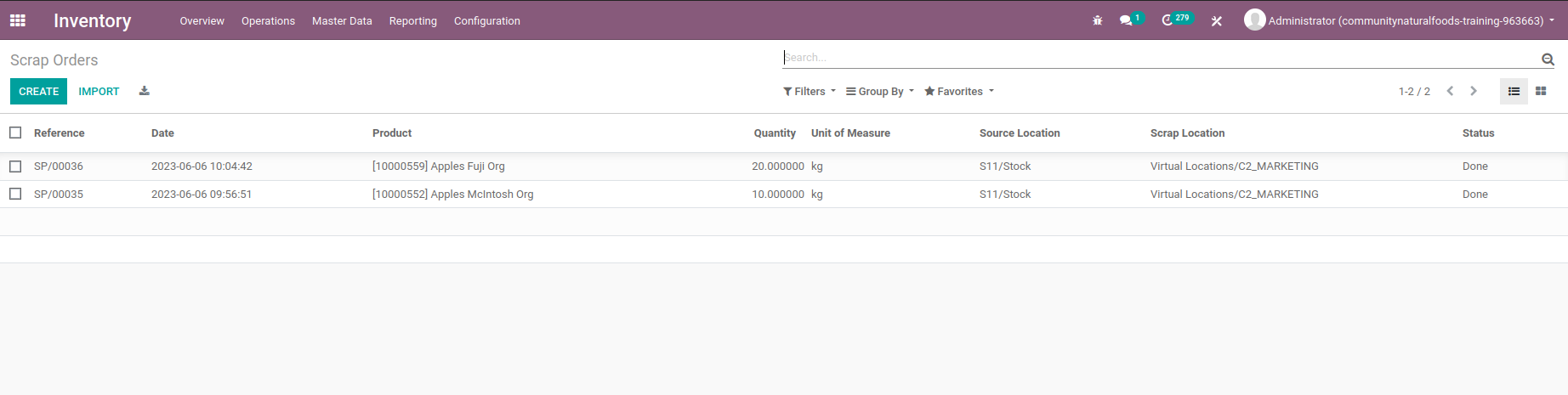
Scrap Operations
Summary
This tutorial will show you how to process scrap using Ventor.
Settings
Turn "Show Packages Fields" under the scrap settings off. 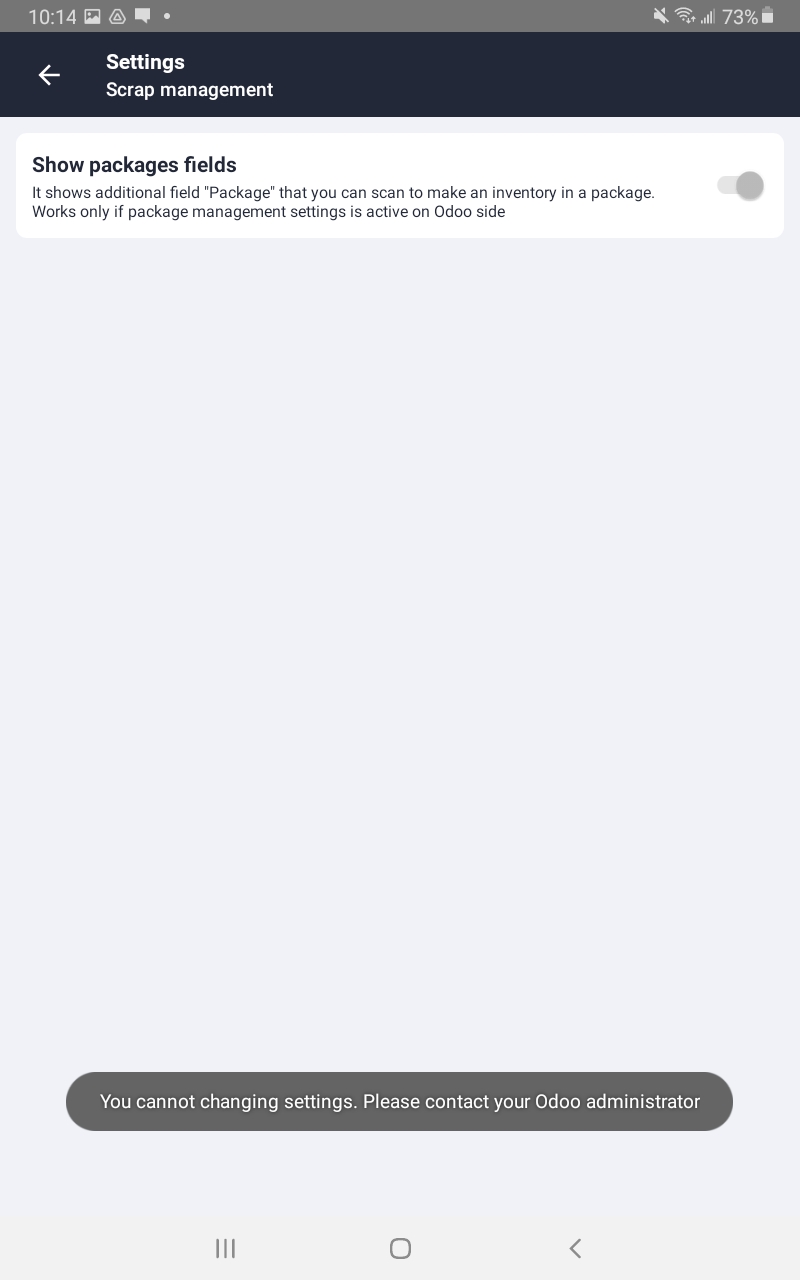
Step By Step
- Login to the ventor app.
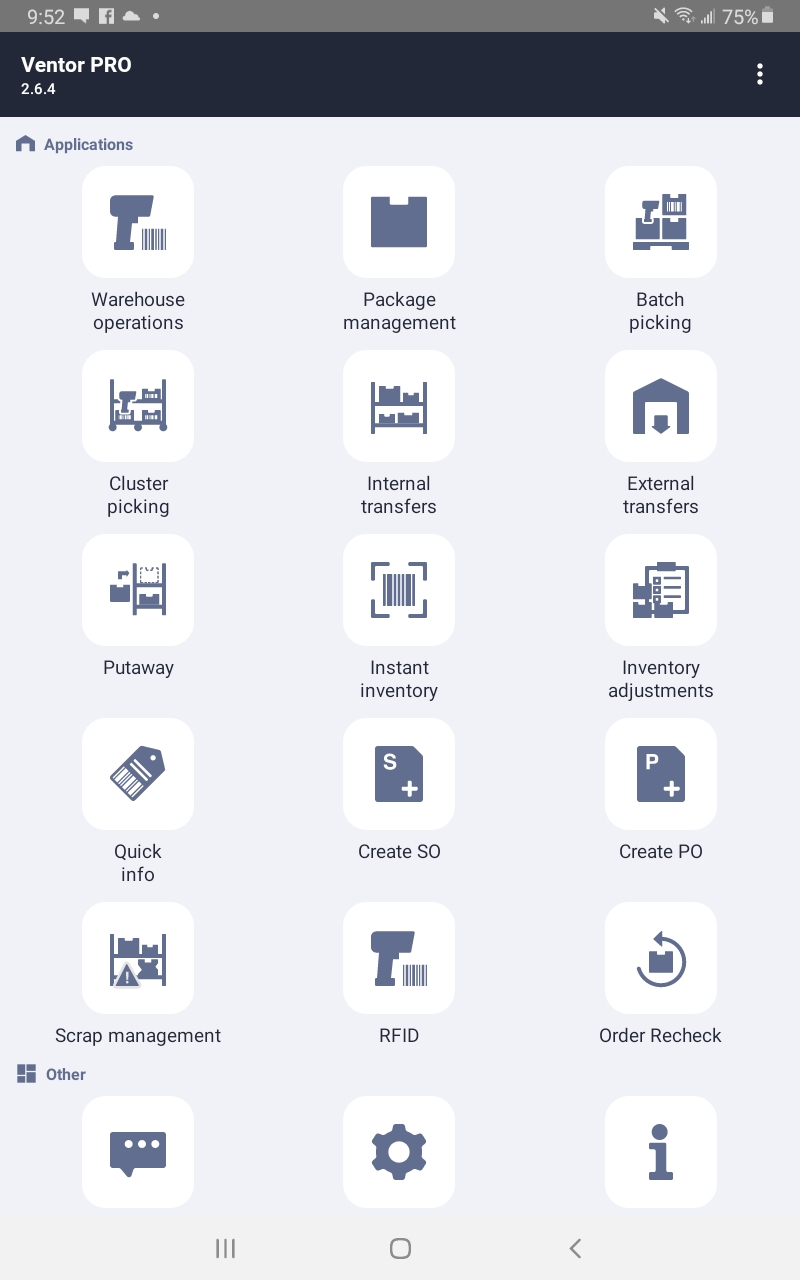
- Select the Scrap Management app.
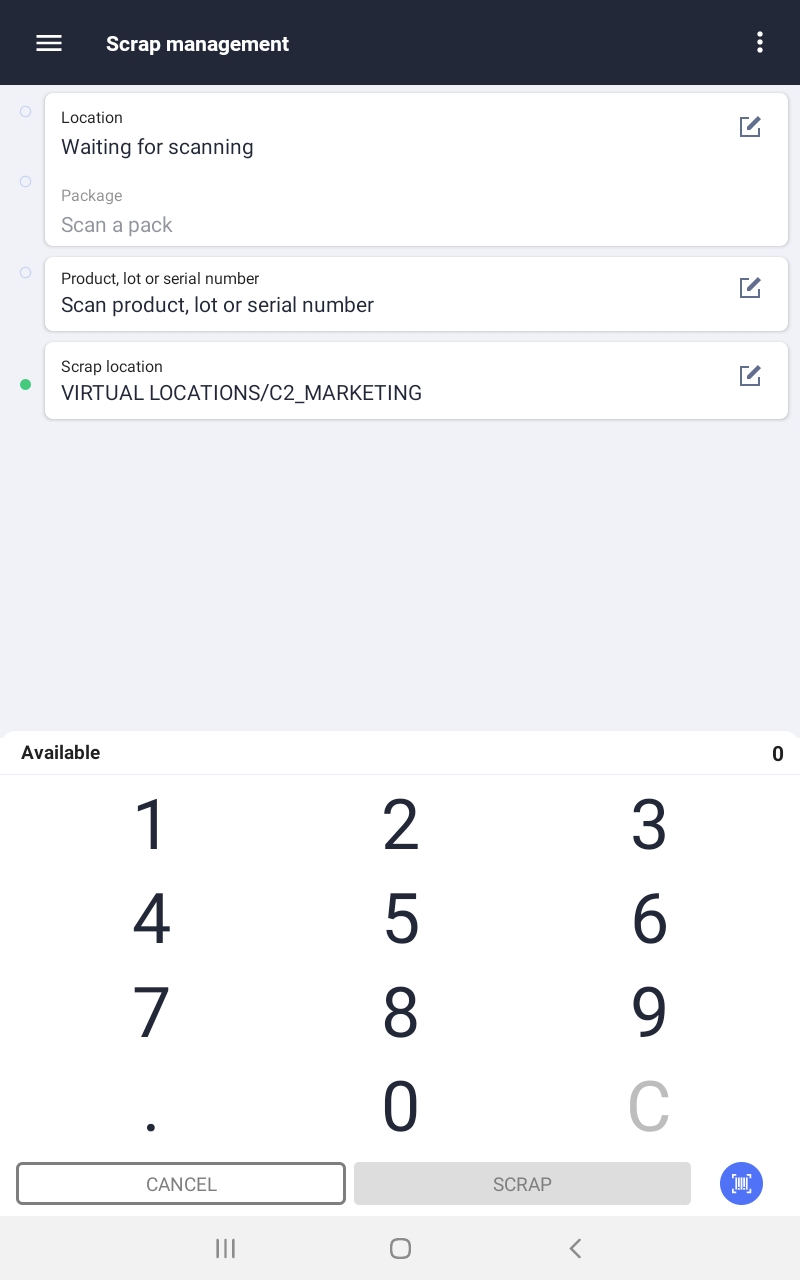
- Select the location from which you will be taking the scrap from. You can either scan the locations barcode or select the location from a list.
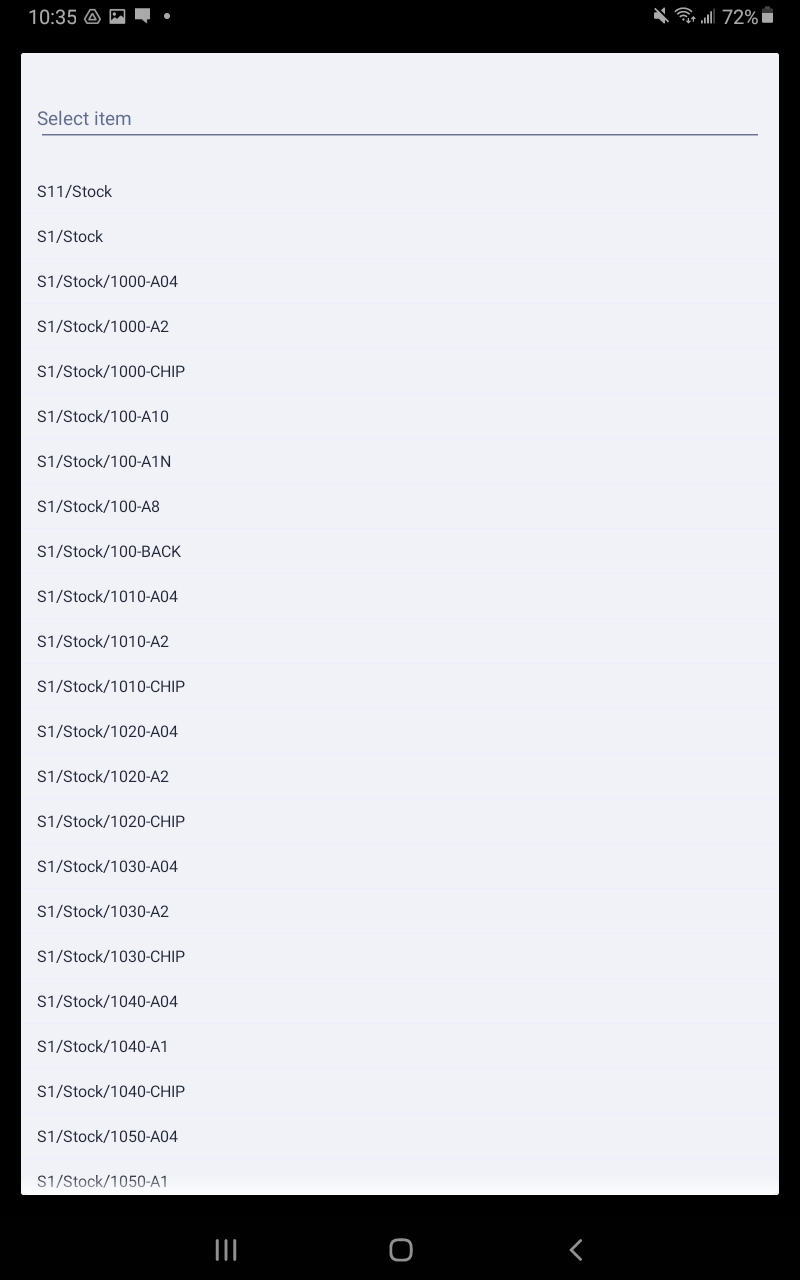
- You will then see the location back in the scrap operation.
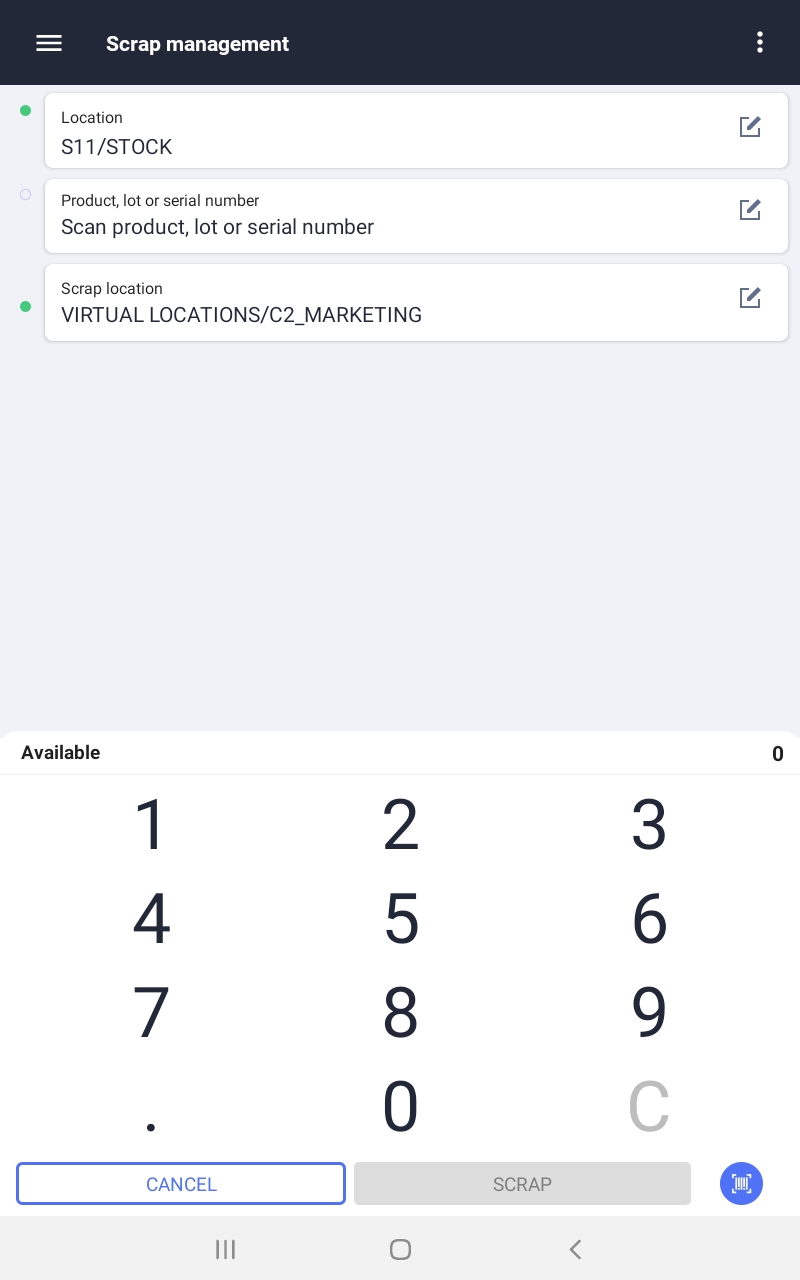
- Next you can scan or select the product.
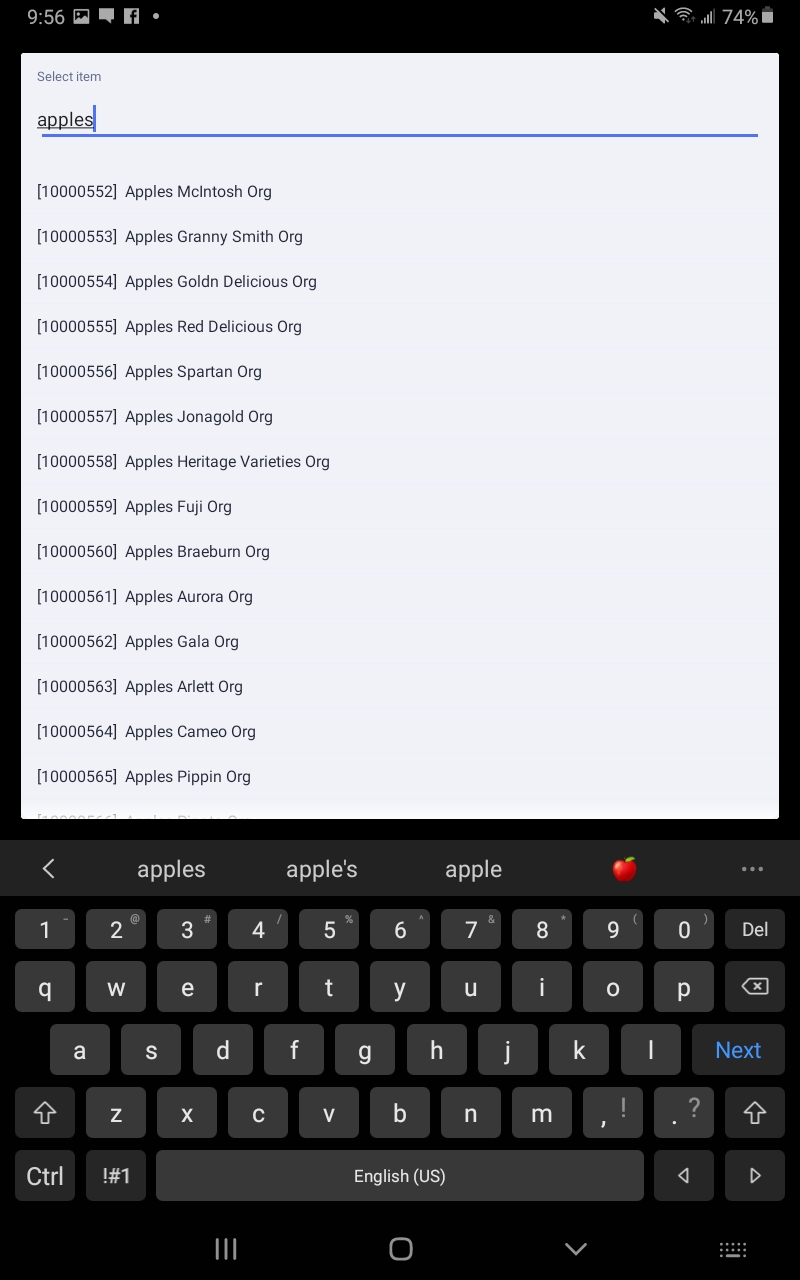
- Then you will see the product selected in the scrap operation.
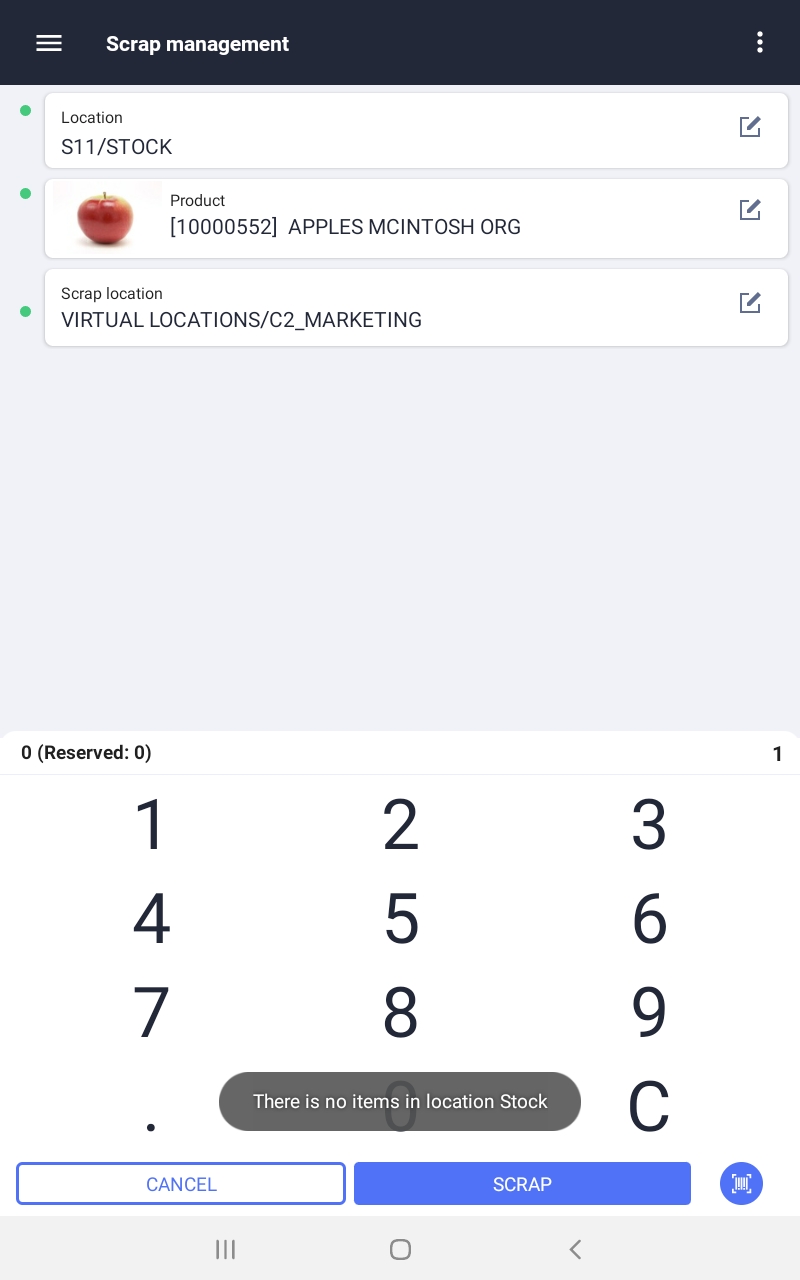
- Next you can scan or select the scrap location. Which is the virtual location in which the scrapped product will be recorded.
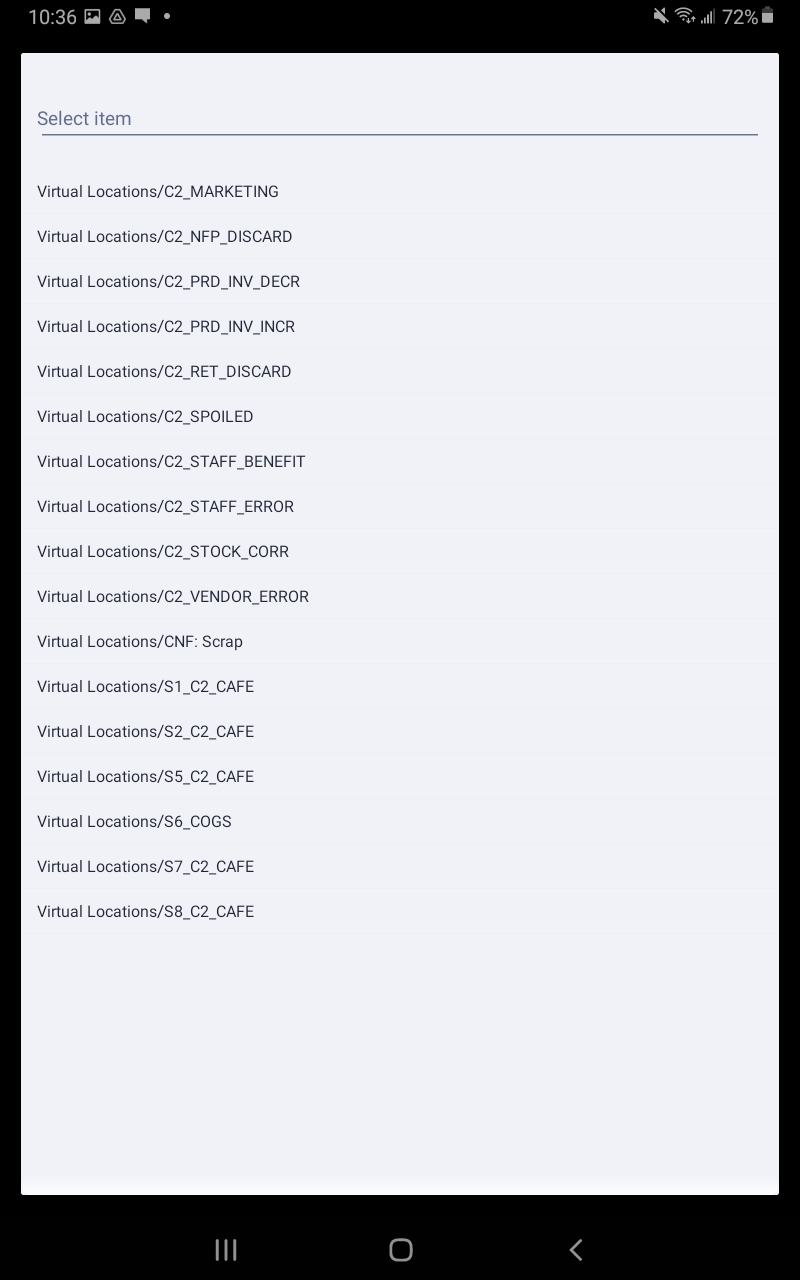
- Once that is done you can enter the quantity of that product which will be scrapped. Or scan the product barcode multiple times.
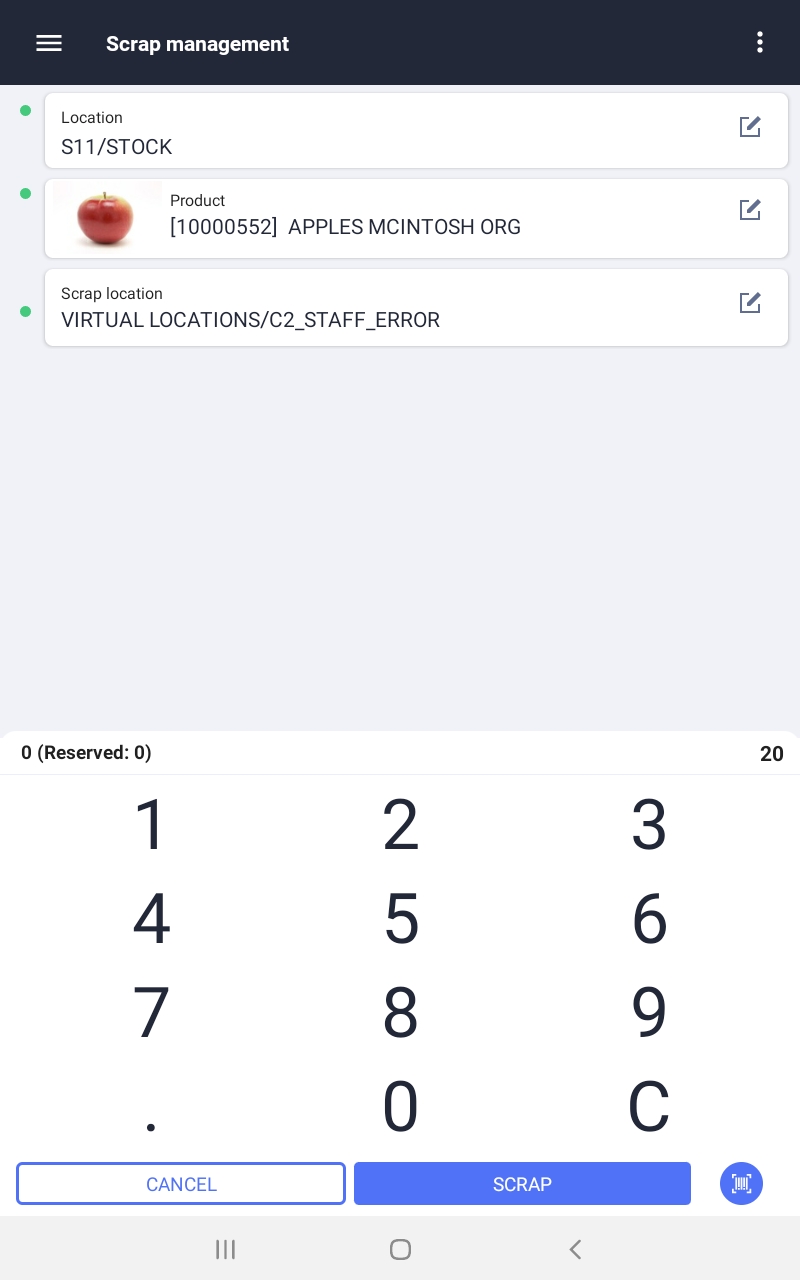
- Finally you can press the scrap button in the bottom left to process the operation. If there is insufficient product in the source location you will get a warning.
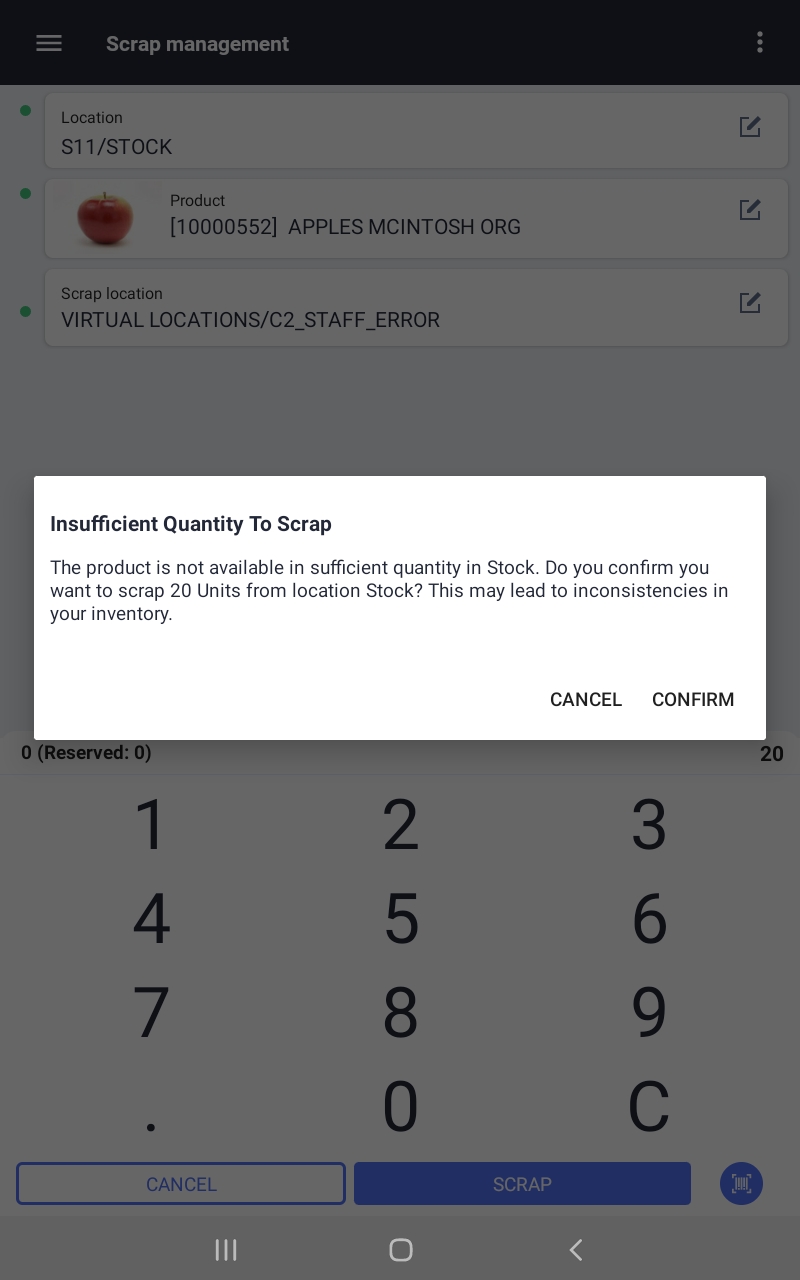
- If you confirm it the product will be moved but the quantity in the source location will go negative.
- You can view these scrap operations under inventory/operations/scrap.