PRATS (Purchase, Receipt, Adjustment, Transfer, Sales) Sync
The PRATS connector is an Odoo module (connector_cnf_inventory) that periodically pulls data from the CRS API and creates the transaction warehouse, purchase or sales transaction in Odoo.
Diagnosing job queue failures
Jobs now have a debug feature to make it easier to step through failures in your development environment.
Prerequisites
- [ ] Database must be in your local dev environment.
- [ ] Use the single worker mode conf, or temporarily remove queue_job from server_wide_modules.
- [ ] queue_job module might need to be upgraded if your database is from before 2023-05-10.
This configuration prevents the jobs from running like a runaway freight train, and instead jobs will be queued as pending indefinitely until run.
Open the Job Queue module and look for the failed job you wish to debug (or one that is pending). 1. Setup breakpoints in your debugger based on the exception information. 2. Click the Debug Job button on the job's view. The job will run and should hit any breakpoints.

- Repeat as necessary.
How to initiate a sync
The PRATS sync is run via an Odoo cron job called "PRATS Sync - Import Everything".
When the cron job runs, it will: 1. Check the "Date Start" field on the Inventory Movement Backend (found in the Connectors app). 2. Queue up jobs to import each type of record needed (Purchases, Receipts, Adjustments, Transfers and POS Sales). 3. The jobs that run will query the REST API for the transactions posted between Date Start and Now(). 4. The jobs will spawn new jobs to import these transactions. 5. The stock validation will occur in its own jobs in the stockvalidation channel.
How to check the last sync date
You can find the last sync date by opening the Connectors app > click the Backends menu, select Inventory Backends, and open Inventory Movement Backend. The Date Start field is the date the sync is currently up to date with.
Comparing Odoo Inventory Levels with CRS
You can use a CRS Inventory Report to compare the inventory levels between CRS and Odoo. A nightly report is generated automatically for 3:00 Mountain(9:00 UTC), which executes every morning at 6:30 Mountain (11:30 UTC). When generating a report, it is important to select a time late at night when there are no postings. All POS transactions should have settled by 3:00 AM Mountain.
To open a CRS Inventory Report, open the Inventory app from the Odoo home screen: 1. Click Reporting > CRS Inventory Reports.

- A list of reports will appear.
- The Report description details when the report was generated.
- The Note is an editable note (Click on it to edit).
- Flagged is an editable checkbox, which will prevent the report from being vacuumed in case you need to keep the report.
- Inventory Report Date is the date of the report.
- Created On is when the report was generated.
- Jobs Remaining is the number of jobs in the job queue remaining.
- Report Status explains whether the jobs are finished, or if there any failures.
- Click the View Lines button at the right of a report to view the report details.
- The report is searchable and has some handy filters.
- Click Filters, and select Is Discrepancy to see all of the reported discrepancies.
- Use Group By to group warehouse locations.
- Use the search box to search for a specific product.
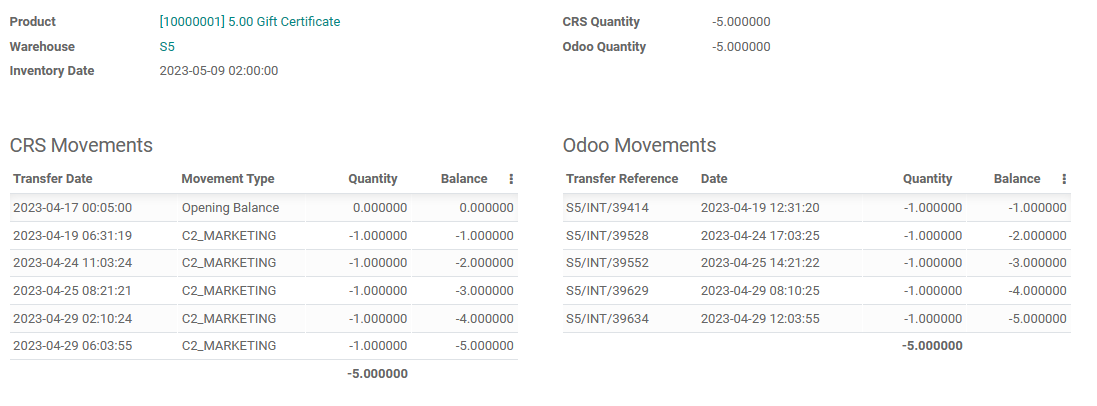
- Click on a report line, especially one with a discrepancy to view a more in-depth comparison.
-
In this view, Odoo will present a view of movements on both CRS and Odoo, and will attempt to guess the date where the discrepancy occured.
Re-balancing Odoo Inventory Levels with CRS
This should not be done unless absolutely necessary.
TODO: Finish writing these steps. 1. Navigate to the Odoo cron jobs.
Related Work Items
::: query-table d9ef774f-3ab0-415e-8256-5048d5d42ec5 :::