Understanding the Odoo Chart of Accounts
The Chart of Accounts in Odoo consists of:
- General Ledger Accounts
- Cost Centers
- Accounting Locations
- Analytic Accounts
- Analytic Tags
Additional data stored in the General Ledger includes Products and Product Categories.
Differences Between Sage 300 and Odoo
In Sage 300, the Chart of Accounts includes GL Accounts with Cost Center and Location embedded in each account.
In Odoo, with the customizations made by Bright Village, the Cost Center and Location has been split out from the GL Accounts so that the number of GL Accounts needed is much less. This reduces the administrative overhead required when adding a new location, and significantly reduces the number of accounts to manage.
| 2300 - 100 - A01 |
| <GL ACCOUNT> - <COST CENTER> - <LOCATION> |
In Sage 300, GL Account codes were comprised of a
4-digit GL Account, 3-digit Cost Center, and 3-digit location.
Example:
In Sage 300, the Cost Center and Accounting Location was in the account's code, this meant many extra GL Accounts were needed to represent each location. In the example below, 7 Sage GL Accounts correspond to just one GL Account in Odoo. Cost Centers in Odoo are now 2 digit, and do not correspond one-to-one with Cost Centers in Sage.
| SAGE GL CODE | SAGE ACCOUNT NAME | ODOO GL CODE | ODOO GL ACCOUNT | ODOO LOCATION | ODOO COSTCENTER | ||
|---|---|---|---|---|---|---|---|
| 2300-100-A01 | ACCRUED LIABILITIES ADMIN | 212100 | Accrued liabilities | A01 | Admin | 12 | Administration |
| 2300-100-S01 | ACCRUED LIABILITIES - 10 AVE | 212100 | Accrued liabilities | S01 | 10th Street Retail | 10 | Store and Omni Channel Operations |
| 2300-100-S02 | ACCRUED LIABILITIES - CHINOOK | 212100 | Accrued liabilities | S02 | Chinook Retail | 10 | Store and Omni Channel Operations |
| 2300-100-S03 | ACCRUED LIABILITIES - HOME DELIVERY | 212100 | Accrued liabilities | S03 | S03 | 10 | Store and Omni Channel Operations |
| 2300-100-S05 | ACCRUED LIABILITIES - CROWFOOT | 212100 | Accrued liabilities | S05 | Crowfoot Retail | 10 | Store and Omni Channel Operations |
| 2300-100-S06 | ACCRUED LIABILITIES WEB SELLING | 212100 | Accrued liabilities | S03 | S03 | 10 | Store and Omni Channel Operations |
| 2300-100-W01 | ACCRUED LIABILITIES-WAREHOUSE | 212100 | Accrued liabilities | W01 | Warehouse | 12 | Administration |
General Ledger Accounts
General Ledger Accounts are the basic accounts used to group transactions together on the General Ledger, comprised of the 5 different types of accounts:
- Asset
- Liability
- Equity
- Revenue
- Expense
Creating or Editing a GL Account
To create or change a GL Account, go to the Accounting app,
then click Configuration > Look for Accounting > then click Chart of Accounts.
-
From the Chart of Accounts tree view, click Create, or if editing, open the GL Account you wish to update.
-
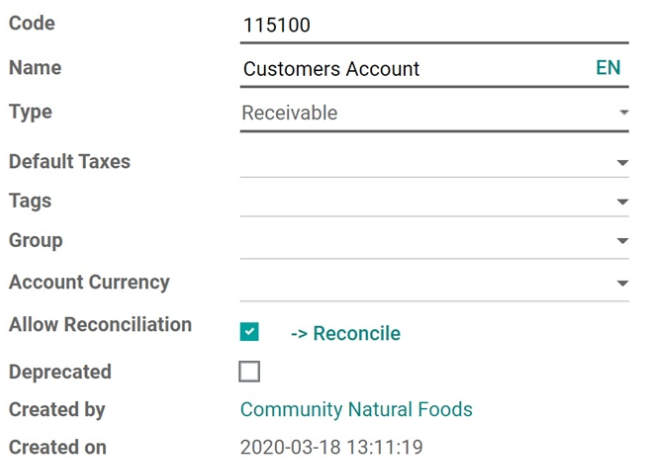
On the GL Account screen, you must assign the GL Account a unique Code and Name.
-
Select the Type of account from the drop down.
-
Balance Sheet - These accounts remain open through fiscal years.
- Bank and Cash - Cash, or liquid bank accounts.
- Receivable - Allows posting Customer Invoices or Journal Entries where the partner primarily owes value to the company.
- Payable - Allows posting Vendor Bills or Journal Entries where the partner is primarily owed value by the company.
- Credit Card - Use for credit cards, especially if you'll be doing bank reconciliation on the credit card account.
- Current Year Earnings - This is used on the Retained Earnings account. Odoo uses this type to automatically calculate the retained earnings. Whereas in other accounting systems, you would may need to close out your P&L into the Retained Earnings account, Odoo does this math automatically, so no journal entry is required to close out the P&L.
-
Profit and Loss - The balances of these accounts will reset at the start of a new Fiscal Year.
-
-
The Account Currency should be left blank unless this account will be in a foreign currency.
- ⚠️ This should NEVER be set to CAD.
-
If the account needs reconciliation, enable Allow Reconciliation.
- ⚠️ This SHOULD NOT be enabled on liquidity accounts like Cash or Bank accounts. Reconciliation should only be enabled on accounts where the debits and credits posted to the account need to be matched together, such as Accounts Receivable or Accounts Payable.
-
Deprecated can be enabled on account that is no longer used. Odoo does not allow deleting accounts that have entries posted to it, however you can Deprecate an account to prevent future entries posting to the account
Product Categories (Revenue, COGS, Inventory)
Odoo stores the product and product category on accounting entries, so we do not need to have GL Accounts for each Product Department that is sold or held in inventory. This means we only need one Revenue and one COGS GL Account instead of a Revenue and COGS account for each department of products sold.
It is not currently possible to re-allocate value on the GL between product categories, this is done automatically by the system when Sales and POS transactions are recorded to the GL.
Cost Centers
Cost Centers represent a business unit or department of the company, such as Finance, Human Resources or Marketing. Not to be confused with Product Departments (such as Cafe, or Fresh Baked Bread).
| Code | Cost Center |
|---|---|
| 01 | Finance |
| 02 | Technology |
| 03 | Marketing |
| 04 | Category Management |
| 05 | Facilities |
| 06 | Human Resources |
| 07 | Supply Chain |
| 08 | Customer Care |
| 09 | Operations Research |
| 10 | Store and Omni Channel Operations |
| 11 | Executive |
| 12 | Administration |
Creating or Changing Cost Centers
To create or change a Cost Center, go to the Accounting app, then
click Configuration > Look for Accounting > Then click Cost Centers.
- From the Cost Centers tree view, click Create, or if editing, open the Cost Center you wish to update.
-
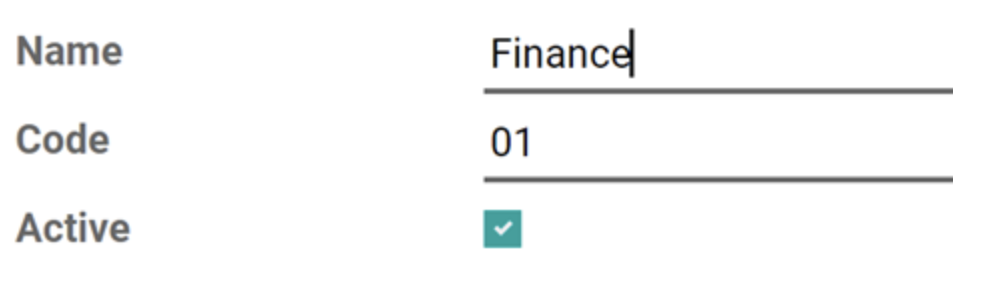
Update or set the name and code so that it fits within the naming convention used in other Cost Centers.
-
Ensure Active is enabled, otherwise the Cost Center will be considered deprecated and won't be selectable from other parts of Odoo.
- Click Save.
Accounting Locations
Accounting Locations represent stores, warehouses and other locations of CNF where value must be tracked.
| Code | Location | |
|---|---|---|
| A01 | Admin | *Represents the Admin office and is the location to use if an accounting transaction does not affect a store or warehouse. |
| S01 | 10th Street Retail | |
| S02 | Chinook Retail | |
| S05 | Crowfoot Retail | |
| W01 | Main Warehouse |
Creating or Changing Accounting Locations
To create or change an Accounting Location, go to the Accounting app, then
click Configuration > Look for Accounting > Then click Accounting Locations.
- From the Accounting Locations tree view, click Create, or if editing, open the Accounting Location you wish to update.
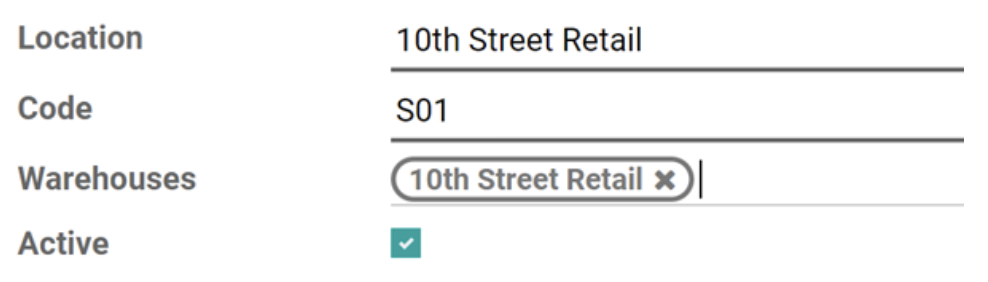
- Give the location a name and code that fits with the naming convention of other locations.
-
If the location is associated with inventory, such as a store location or warehouse, select the applicable warehouse under Warehouses.
-
Ensure Active is enabled, otherwise the Accounting Location will be considered deprecated and won't be selectable from other parts of Odoo.
- Click the Save button.
Analytic Accounts
Analytic Accounts are yet another way of tagging value on the General Ledger. These are used to further categorize transactions on specific accounts, such as the Fixed Assets account.
| Account Types |
|---|
| Communication – Employee Cell Phone Plan |
| Bank Fee - Foreign Exchange |
| Revenue – Retail |
| Revenue – Omni |
| Revenue – Click & Collect |
| COGS – Retail |
| COGS – Omni |
| COGS – Click & Collect |
| Repairs & Maintenance – Furniture |
| Repairs & Maintenance – Automotive |
| Repairs & Maintenance – Office equipment |
| Repairs & Maintenance – Store Equipment |
| Professional Fees – IT |
| Professional Fees – Finance |
| Professional Fees – HR |
| Professional Fees – operations (supply chain) |
| Vendor Rebate - Coupons |
| Asset - Land |
| Asset - Equipment |
| Asset - Lease Hold Improvements |
| Asset - Building |
| Asset - Furniture |
| Asset - Computer Hardware |
| Asset - Computer Software |
| Asset - Vehicles |
| Asset - WIP |
| Asset - Held for Sale |
| Asset - Intangible Assets |
| Utilities - Electrical |
| Utilities - Water |
| Utilities - Sewer |
| Utilities - Natural Gas |
Analytic Tags
Analytic Tags provide yet another way to tag accounting transactions. One difference between Analytic Accounts and Analytic Tags, is an accounting entry can be associated with many Analytic Tags but can only be associated with one Analytic Account.
Company Information
Community Natural Foods Head Office
AB, Canada
Website
GST: 101072080RT0001