Creating a Vendor Bill from a Purchase Order
Navigating to Vendor Bills
To get started with creating a Vendor Bill, navigate to the Accounting app in Odoo:

Go to Vendors > Vendor Bills.
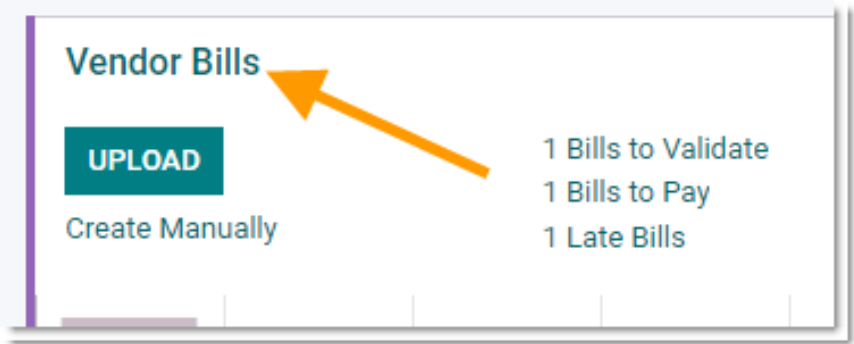
From the Vendor Bills screen, click Create. You'll be presented with a Vendor Bill form view.
Purchase Order Workflow
NEW
| Activity | Team |
|---|---|
| PO Created | Warehouse |
| Vendor Bill Received | Accounting |
| Delivery Received | Warehouse |
| Vendor Bill Reviewed/Posted | Accounting |
| Vendor Bill Paid | Accounting |
A Vendor Bill can be received after or before the Delivery is received by the warehouse.
Entering Purchase Order Information
- If the Vendor Bill is tied to a Purchase Order (Inventory Related), enter the PO number in the "Auto-complete" field and select the applicable PO.
- If the Vendor Bill covers multiple POs, select each PO one at a time until all are entered.
When you select the applicable PO, Odoo will automatically pull in the PO order lines into the Vendor Bill and set the quantities to the amount received by the warehouse.
Note: If nothing was received, you can continue to fill in the details from the bill, but the bill should not be paid until the warehouse receives the delivery.
Completing the Vendor Bill
After the Vendor Bill is populated with data from the PO, fill in:
- Bill Date
- Payment Terms
- Invoice Number (entered into the Reference field)
Since the PO lines have been imported automatically:
- Compare the invoice lines on the Vendor Bill with those received from the Vendor.
- Adjust the price or quantity if necessary.
- The quantities populated by Odoo reflect the amount counted by the warehouse team when stock was received.
Note: Ensure that the Cost field (column) is populated before posting the Vendor Bill.
Finalizing the Vendor Bill
- Once you have verified all details, click Save.
- Click Confirm to Draft to move the bill to the draft state.
- When everything is confirmed, click POST to officially post the Vendor Bill.
Company Information:
Community Natural Foods Head Office
AB, Canada
Website
HST: 101072080RT0001