Counting Inventory
Terms
- COUNT refers to the first count of a location, and is performed by a counter.
- VERIFICATION refers to the second count of a location, and is performed by a different counter.
- ADJUSTMENT refers to the audit of a discrepancy between the count and verification. This is performed by an adjuster.
Counting Products
To begin, open the Odoo app on your mobile device, and look for and open the Barcode app.
Opening the app will take you to the Main Barcode Scanning screen.
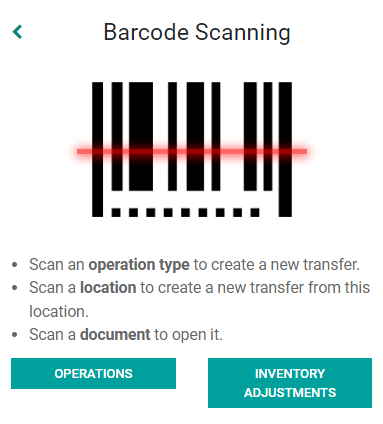
Scanning a Shelf
From the Main Barcode Scanning screen, you can scan a shelf barcode to start counting at that shelf. When counting at a shelf, you should complete the count of all products on that shelf before closing the count and continuing to the next count.
If for some reason the app crashes and you have to relaunch the app, you can scan the shelf barcode to resume your count.
- Scan the shelf barcode to get started.
- Scanning the shelf barcode will open the Inventory Count at that shelf.
Inventory Count Screen
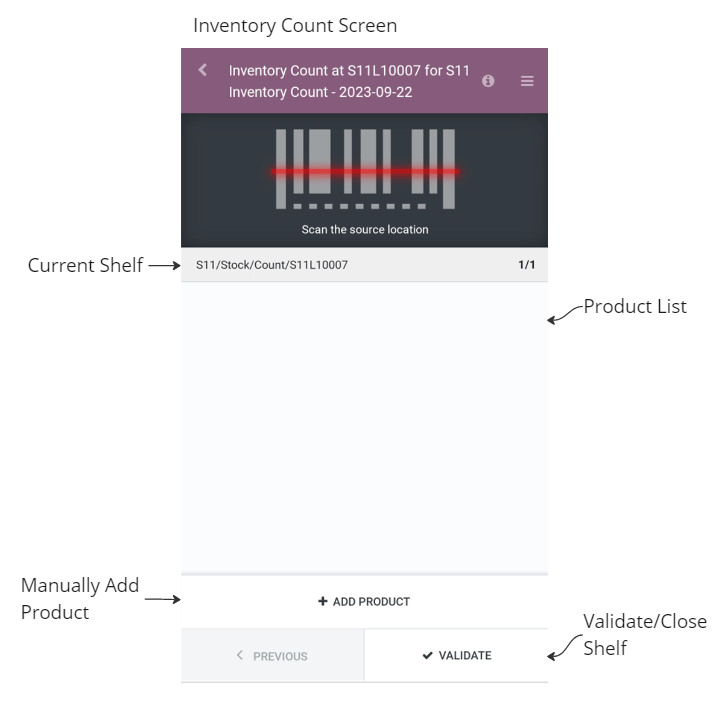
When many products are added to an Inventory Count, you may need to scroll down to access buttons along the bottom.
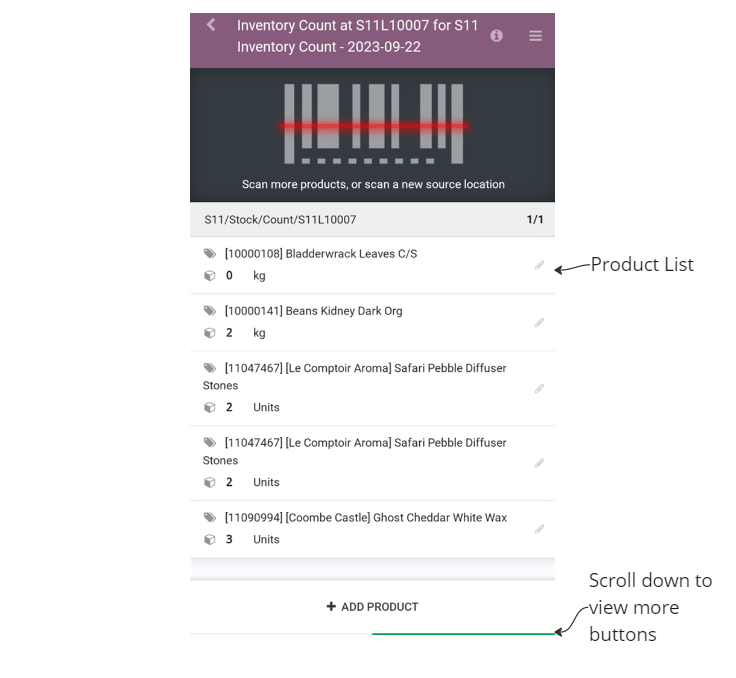
Product Screen
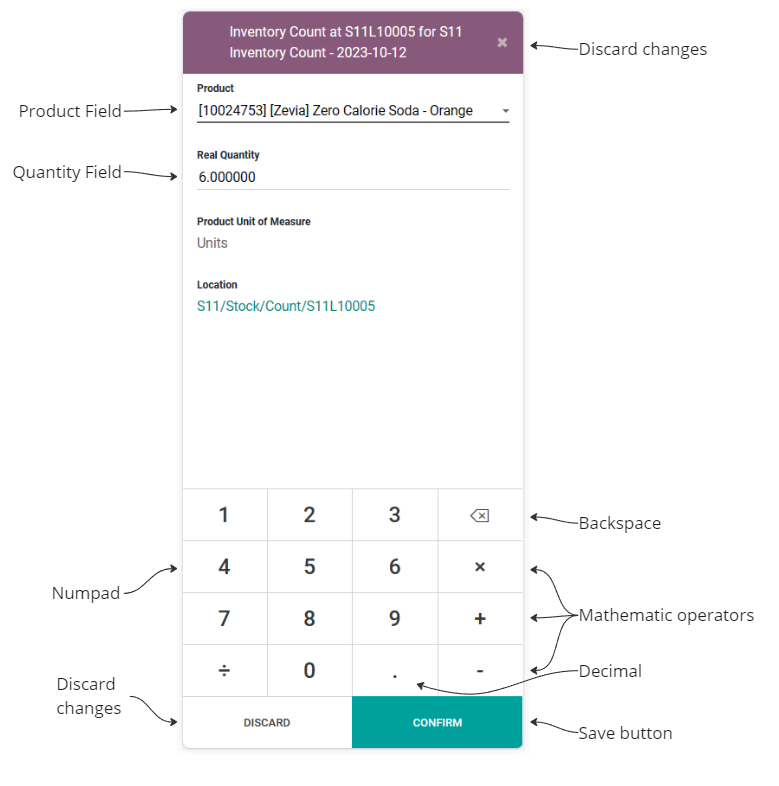
The Product Screen has a numpad/calculator functionality for the Real Quantity field. The calculator feature only allows you to use one mathematical operator at a time.
Manually Selecting a Product
In some cases, you may need to enter a product manually due to a missing or damaged barcode.
1. Tap the + ADD PRODUCT button at the bottom of the Inventory Count screen.
2. Tap the Product field.
3. A Search Product screen will open.
4. Tap the Search bar and search for the product by barcode and hit the Enter Key  .
5. You should see the product in the results. Tap the product to select it.
.
5. You should see the product in the results. Tap the product to select it.
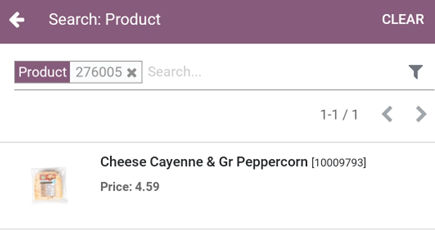
- With the product selected, enter the count using the numpad, and tap the Confirm button to save.
- You should now see the product line added to the Inventory Count.
Scanning a Product Barcode
In most cases, you can scan a product's barcode to add it to the Inventory Count. 1. From the Inventory Count screen, scan the product's barcode using the hardware scanner, or tap on the "Tap to Scan" button to use your device's camera. 2. Enter the counted quantity using the numpad, and tap the Confirm button to save.
Tare Weights
If you need to enter a tare weight for a product, the Real Quantity field support basic formulas.
In this example, the gross weight is 12.123 and the tare weight is 0.135. 1. In the Real Quantity field, enter the value as [GROSS WEIGHT]-[TARE WEIGHT], or 12.123-0.135 = 11.988.
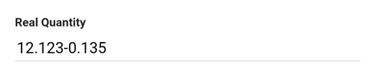
- Tap the Confirm key.
- On the Inventory Count screen, the product quantity will have been adjusted automatically to deduct the tare weight.

Counting Cases
When you scan the barcode of a case, Odoo should automatically enter in the quantity of the case. You can then count each case and use the multiplication button to multiply the number of cases by the case size. 1. Scan the barcode on the case. 2. Odoo will open the product screen with the case quantity set. (ie. 12) 3. Using the numpad, press the Multiplication key, then enter the count of cases.

- Press the Confirm button to complete the count.
*If you encounter individual units outside of a case, these units must be entered on a separate line by scanning the individual product barcode.
Correcting Wrong Quantity
If you entered the wrong quantity for a product and are still on the Inventory Count screen, you can fix the quantity by tapping the pencil icon  on the product line.
1. Tap the pencil icon
on the product line.
1. Tap the pencil icon  .
2. Enter the corrected value in the Real Quantity field.
3. Tap the Confirm button.
.
2. Enter the corrected value in the Real Quantity field.
3. Tap the Confirm button.
If you entered the wrong quantity but have validated the count at that shelf, please notify the controller, noting the shelf and product that was wrong.
Correcting Wrong Product
If you entered the wrong product and are still on the product count screen: 1. Tap the Product field and search for the correct product by barcode or SKU. 2. Select the correct product. 3. Finish entering the counted quantity as normal.
If you entered the wrong product but have moved onto the Inventory Count screen but are still on the same shelf: 1. Tap the Pencil icon next to the problem product. 2. Tap the Product field and search for the correct product by barcode or SKU. 3. Select the correct product. 4. If the Real Quantity is correct, tap the Confirm button at the bottom of the screen.
If you entered the wrong product but have validated the count at that shelf, please notify the controller, noting the shelf and product that was wrong.
Resuming Count After App Crash
If for some reason you had to close the app due to the app freezing, or if it crashed, you can resume counting the shelf you were counting if it was not validated. 1. Open the Odoo app, and navigate to the Barcode app. 2. Scan the shelf you were counting. 3. The shelf Inventory Count will open with the products you had previously counted.
If the shelf opens with an empty list of products and you are certain there should be products, notify the controller.
Unable to Open Shelf
You cannot count a shelf more than once. If an error message comes up because you've already counted a location, notify the controller.
If an error message indicates that the location does not exist, it could be a scan error. Wait a moment and try scanning the shelf barcode again.
Finishing Count at a Shelf
When you have counted all the products at a shelf location, you must Validate the count to close the shelf and move on to the next shelf. 1. From the Inventory Count screen, tap the green Validate button at the bottom of the screen.
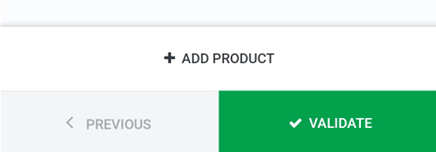
- A confirmation dialog will appear asking to confirm validating the shelf. Tap Confirm.
- You'll be returned to the Main Barcode Scanning screen where you can scan your next shelf barcode.
Performing Adjustment as an Adjuster
An Adjusters workflow is very similar to that of a Counter, except when an Adjuster scans a shelf barcode, the products to be counted will be prepopulated.
- A Controller will provide you a print out of locations and products at those locations that need to be recounted due to discrepancies between first and second counts.
- Go to and scan the shelf location that needs to be adjusted.
- Odoo will open the shelf, and the list of products needing adjustment will appear.
- Scan the product barcode, or tap the pencil icon next to the product.
- Enter the counted quantity of product in the Real Quantity field. If the product is not at the shelf location, leave the value at zero.