Warehouse Operations
Putaway Rules
How to Access
Inventory Module -> Configuration -> Putaway Rules
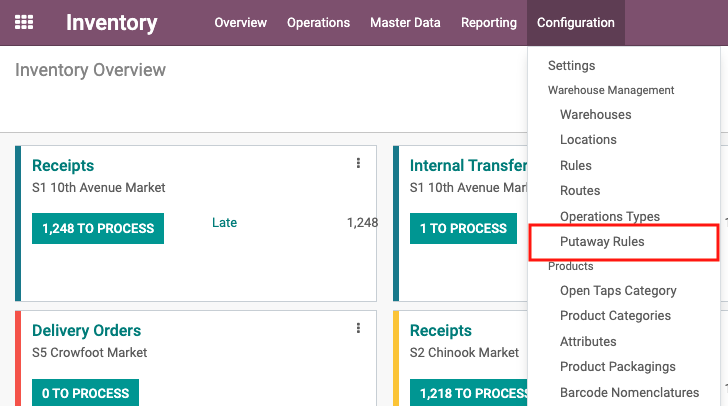
Main Screen
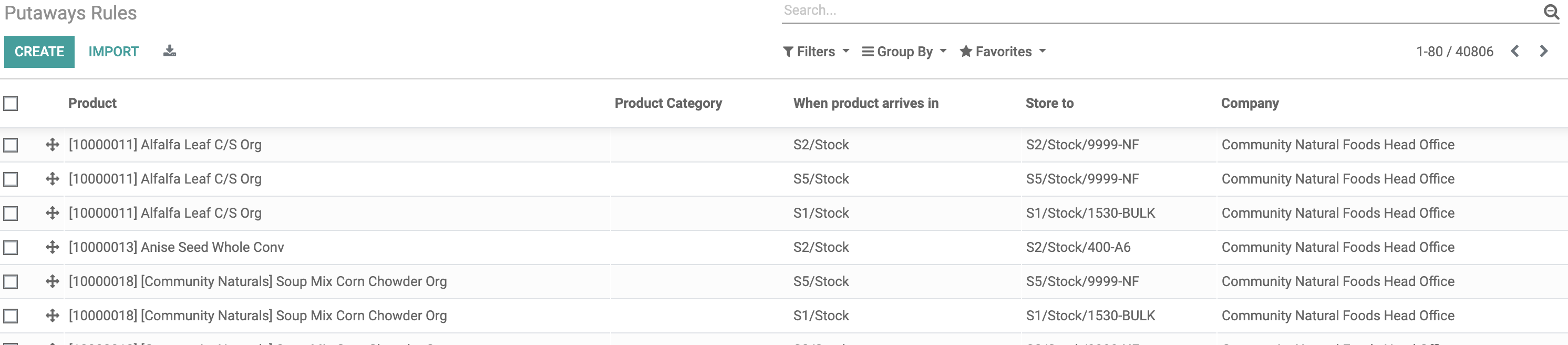
Product: Name of the product for the rule
When product arrives in: The location that triggers the putaway rule when a transfer is created with this location as the destination
Store to: The final storage location where the product will be placed once the putaway rule is triggered
Training
- Open Putaway Rules Tree View:
• Navigate to the Inventory module.
• Select the “Configuration” menu.
• Click on “Putaways Rules” to open the tree view. - Create a New Rule:
• Enter the following details for the new rule:
• Product: Select “Bloom Kombucha [11064377]”.
• When product arrives in: Select “S1/Stock”.
• Store To: Enter “S1/Stock/1-A1N”.
• Save the new rule - Verify the New Rule in Tree View:
• In the Putaway Rules tree view, confirm the following details:
• Product: [11064377][GT’s] Bloom Kombucha.
• When product arrives in: S1/Stock.
• Store To: S1/Stock/1-A1N. - Update the Current Rule:
• Locate the rule for “Bloom Kombucha [11064377]” in the tree view.
• Click on the rule to edit it.
• Update the Store To field to “S1/Stock/9999-NF”.
• Save the changes. - Verify the Updated Rule in Tree View:
• In the Putaway Rules tree view, confirm the following updated details:
• Product: [11064377][GT’s] Bloom Kombucha.
• When product arrives in: S1/Stock.
• Store To: S1/Stock/9999-NF.
Out of Stock Report
How to Access
Inventory Module -> Reporting -> Out of Stock Report
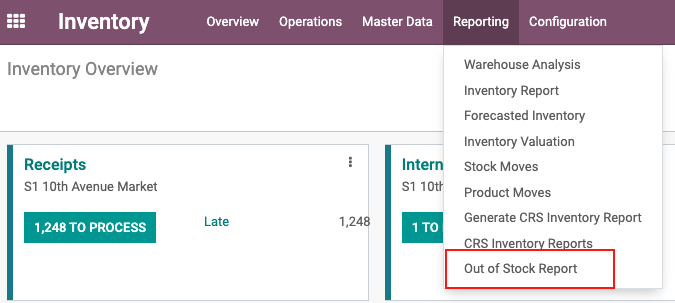
Report Wizard
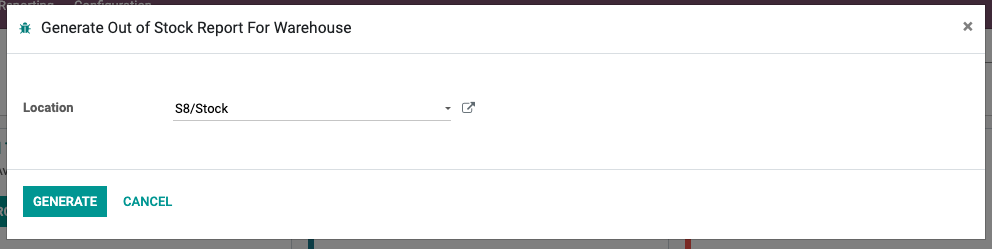
Select the Warehouse Location and press 'GENERATE' to create report
Tip: If you have a default warehouse set in your profile, wizard will automatically pre-fill your default warehouse as 'Location'
Report Format
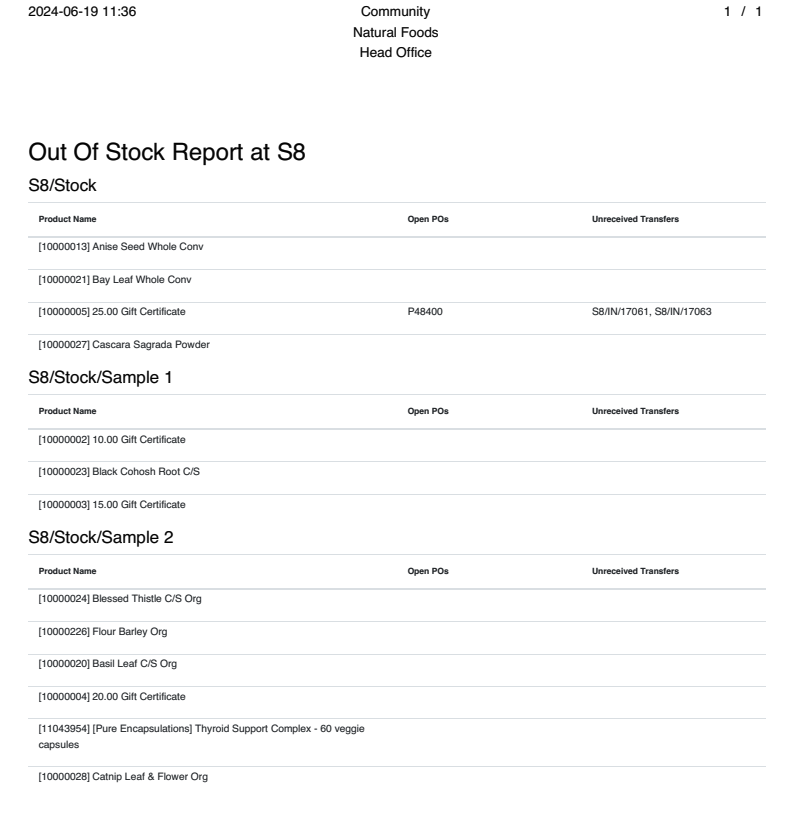
Report is grouped by Shelf locations
Product Name: Code and Name of the Product
Open POs: Open purchase order with the product that has not been received
Unreceived Transfers: Open Internal Transfer with the product that has not been validated
Training
- Generate Out of Stock Report for Section S8:
• Access the inventory module
• Navigate to the reports section.
• Select the “Out of Stock Report” report.
• Specify Warehouse S8 and generate the report.
• Print the report. - Locate the First Shelf with a Missing Product:
• Review the printed report.
• Identify the first shelf listed with a missing product. - Verify the Product is Not on the Shelf:
• Go to the specified location in Section S8.
• Check the shelf thoroughly to ensure the product is indeed out of stock.
• If the product is found, update the inventory system accordingly.
• If the product is not found, proceed to the next item on the report and repeat the verification process. - Document Findings:
• For each missing product, document whether it was found or confirmed as out of stock.
• Submit the findings as required by your organization’s procedures.