Stock Planner
HOW TO ACCESS
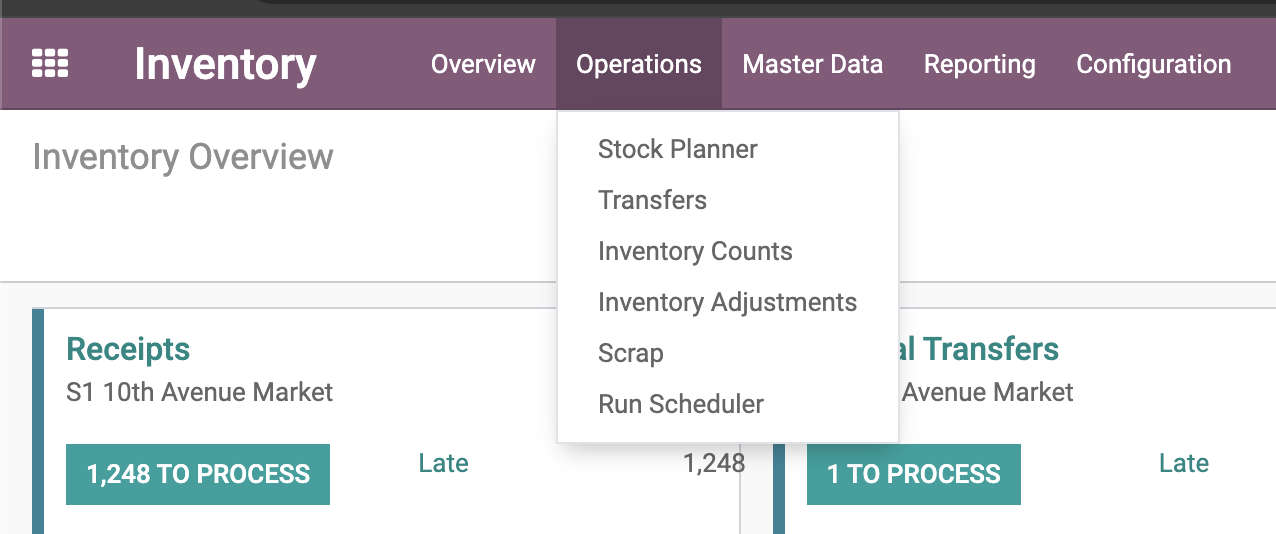
From Inventory Module -> Operations -> Stock Planner
Main Screen

Max/Min: When the virtual stock goes below the Min Quantity, Odoo generates a procurement to bring the forecasted quantity to the Quantity specified as Max Quantity
These fields can be manually edited by the PFS team from the Main View
On Hand: On hand quantity of the product at each specific warehouses.
This field can be manually edited by the PFS team from the Main View
Demand: Quantity needed to Max quantity based on quantity on hand
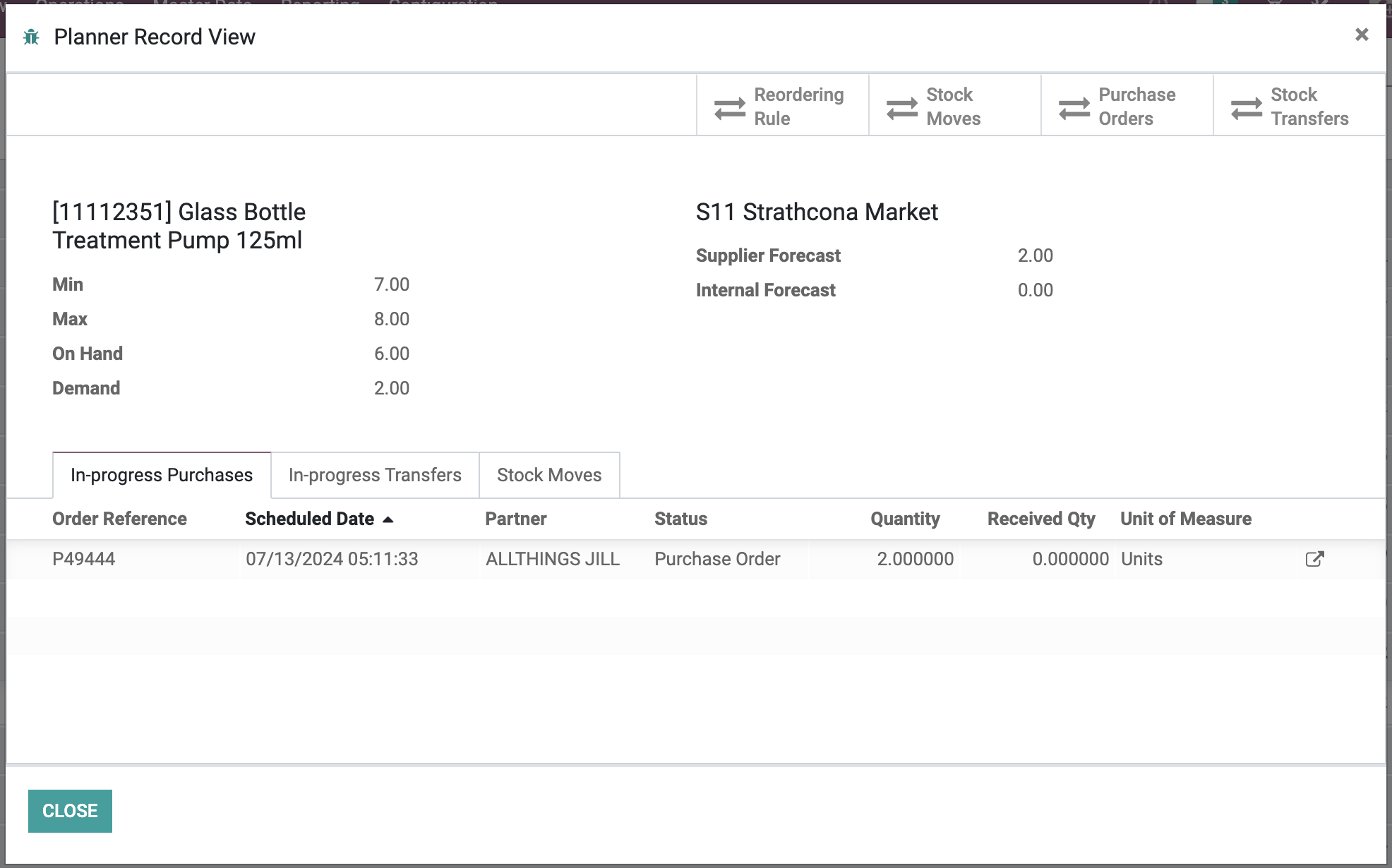
Supplier Forecast: Confirmed Purchase Order Quantity
Internal Forecast: Confirmed Transfer between warehouses
Velocity Daily: Daily sales velocity (Daily sales - Daily returns)
Velocity Weekly: Weekly sales velocity (Weekly sales - Weekly returns)
Velocity Monthly: Monthly sales velocity (Monthly sales - Monthly returns)
Vendor: Primary Vendor for the Reordering Rule
Reordering Rule: Reordering rule of the product set for the specific warehouse
Detailed Warehouse View
Buttons
Reordering Rule: Redirect to the reordering rule screen of the product
Stock Moves: Redirect to the tree view of all internal transfers
Purchase Orders: Redirect to the tree view of all purchase orders
Stock Transfers: Redirect to the tree view of all external transfers (from vendors/to customers)
Tabs
In-progress Purchases: List of all of outstanding purchase orders where received quantity is less than ordered quantity
In-progress Transfers: Any open Internal transfers with open status (Not in Done State)
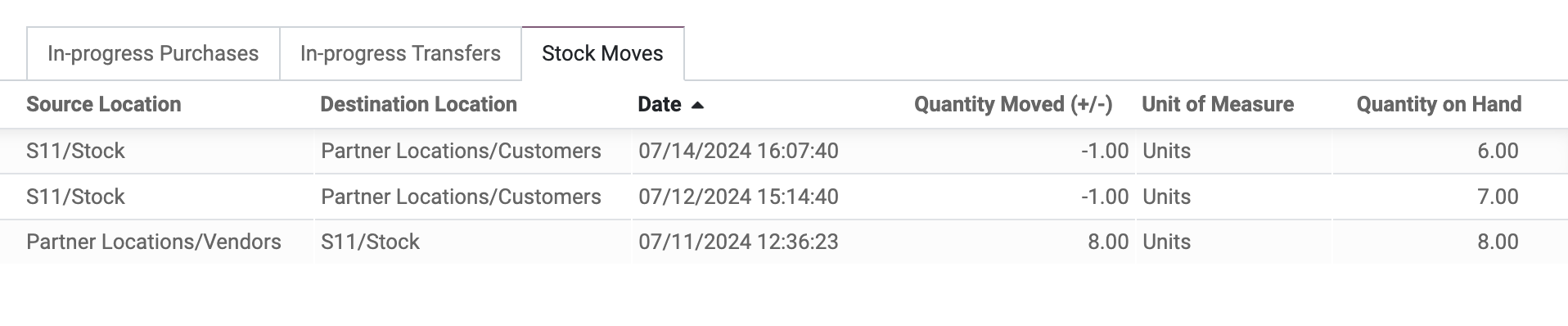 Stock Moves: Record of all of stock movements and its quantity on hand at the time of the stock move. For the Quantity Moved, plus represents increase in stock and minus represents the decrease in stock
Training
- Open Stock Planner:
• Navigate to the Stock Planner module the Inventory Module - Group by Warehouse:
• In the Stock Planner view, use the “Group By” option.
• Select “Warehouse” to organize the products by their respective warehouses. - Search for a Product:
• Use the search bar to find a specific product (e.g., type “kombucha”). - Check Stock Levels:
• Locate the product in Warehouse S11. (eg. [11064377] [GT’s] Bloom Kombucha )
• Check the following details:
• Stock Level: Current stock level at S11.
• Supplier Forecast: Any incoming quantities from suppliers.
• Internal Forecast: Any incoming quantities from other locations.
• Stock Adequacy: Determine if the stock level is adequate based on demand. - Open Detailed View:
• Click on the product to open its detailed view.
• Review additional information about the product. - Review Supplier/Internal Forecasts:
• If there are any forecasts, check for the following:
• Purchase Order Number: Identify the purchase order number for incoming stock from suppliers.
• Internal Transfer Number: Identify the internal transfer number for stock movements within warehouses. - Search by Warehouse:
• Return to the Stock Planner view.
• Use the search bar to find a specific warehouse (e.g., type “S11”). - Edit Min/Max/On Hand Levels: (PFS Team Only)
• In the tree view, locate the product you want to edit (e.g., product 10008054 for S11).
• Update the following fields directly in the tree view:
• Min: Change the minimum stock level to 10.
• Max: Change the maximum stock level to 20.
• On Hand: Change the on-hand quantity to 14.
• Save your changes.