Guide to Remove Legacy Websites from the Odoo Website Module
Note: Before starting this guide, make sure to complete the steps in the Guide to Uninstall E-commerce Modules in Odoo. This ensures that dependent modules and configurations are properly removed, preventing potential issues when cleaning up legacy websites. It is also recommended to review and delete records via the UI when possible, although alternative methods are provided.
Purpose
This guide provides a step-by-step process to safely remove websites that are no longer in use from the Odoo Website module. This cleanup helps simplify the system and supports smoother future upgrades.
⚠️ Important Warning
Never delete website ID 1 ("Community Natural Foods") - this is the main website and must be preserved.
Websites (Initial State)
- Go to Website → Configuration → Websites
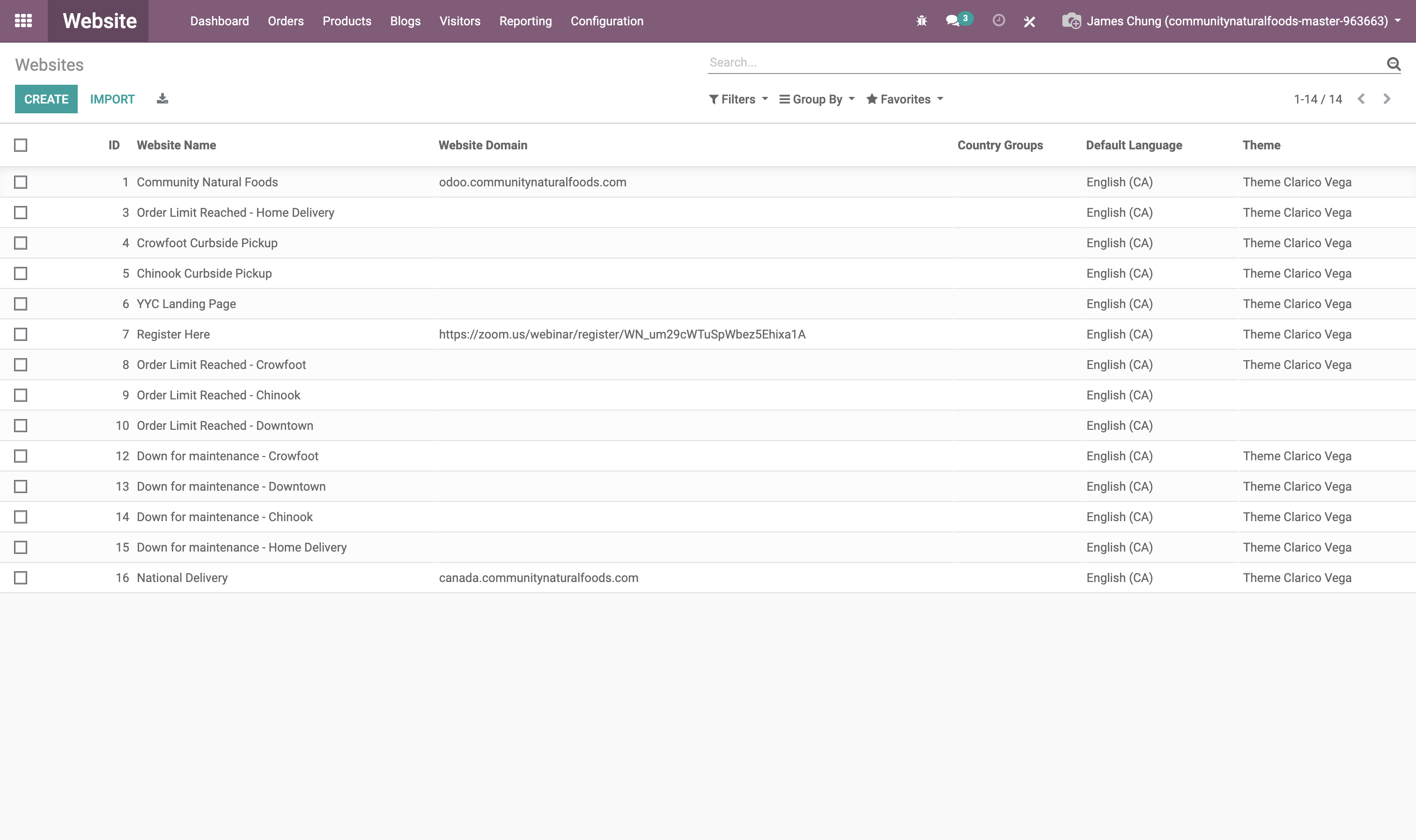
Image 1 – Initial list of Websites
Pre-Removal Verification
Before starting, verify which websites currently exist in the system:
Steps to Remove Legacy Websites
1. Archive and Remove Website Content
a. Remove Website References from Blogs
Clear the website association from blogs not tied to the "Community Natural Foods" website:
b. Archive All Blog Posts
Deactivate all blog posts:
c. Remove Blog Posts Not Belonging to "Community Natural Foods"
Via UI:
- Go to Website → Blogs
- If there are no active posts, check archived ones (Filters/Archived)
- Select posts not linked to Community Natural Foods
- Click Action → Delete
- Repeat until all unnecessary posts are deleted
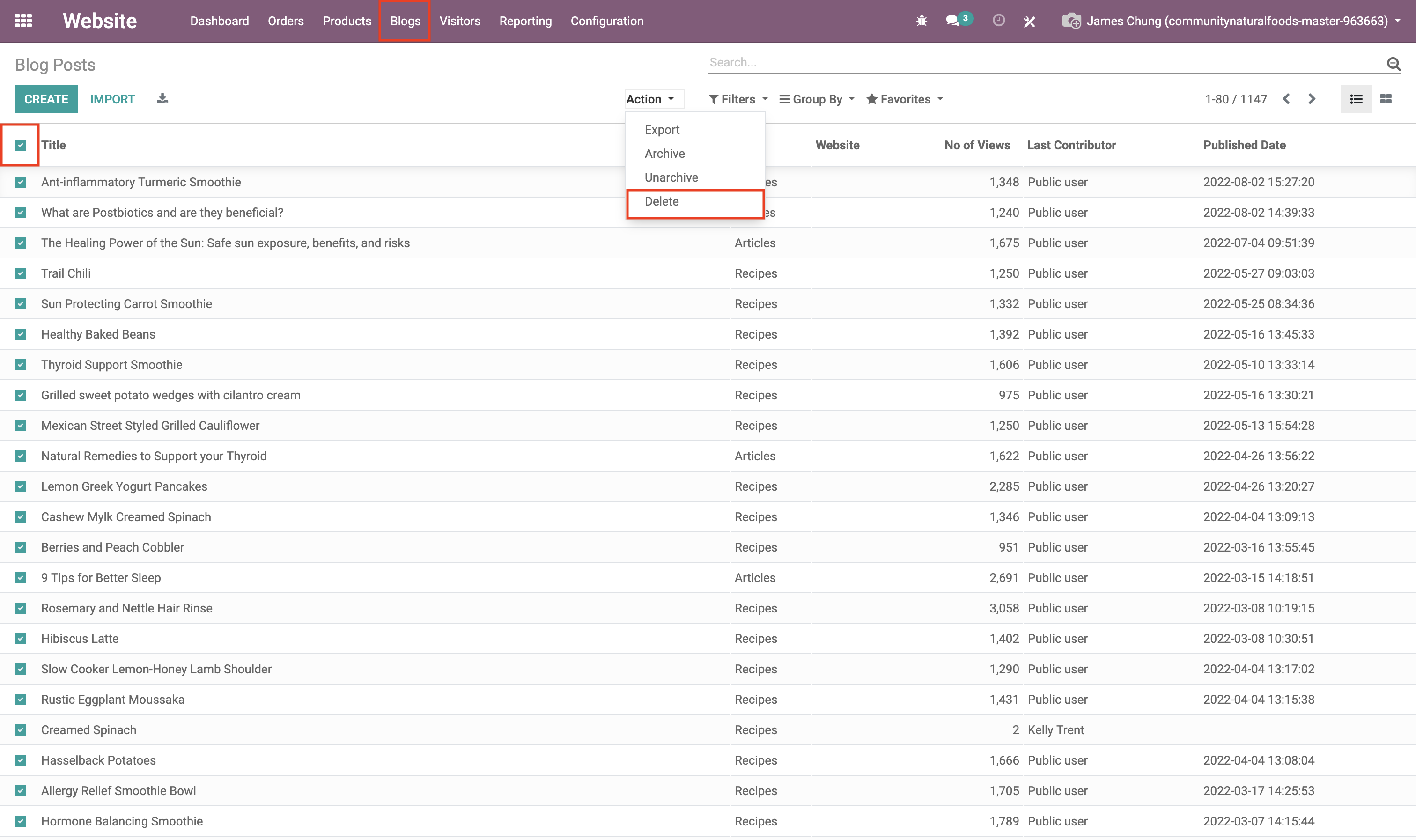
Image 2 – Initial list of Blog Posts
Alternatively, use SQL:
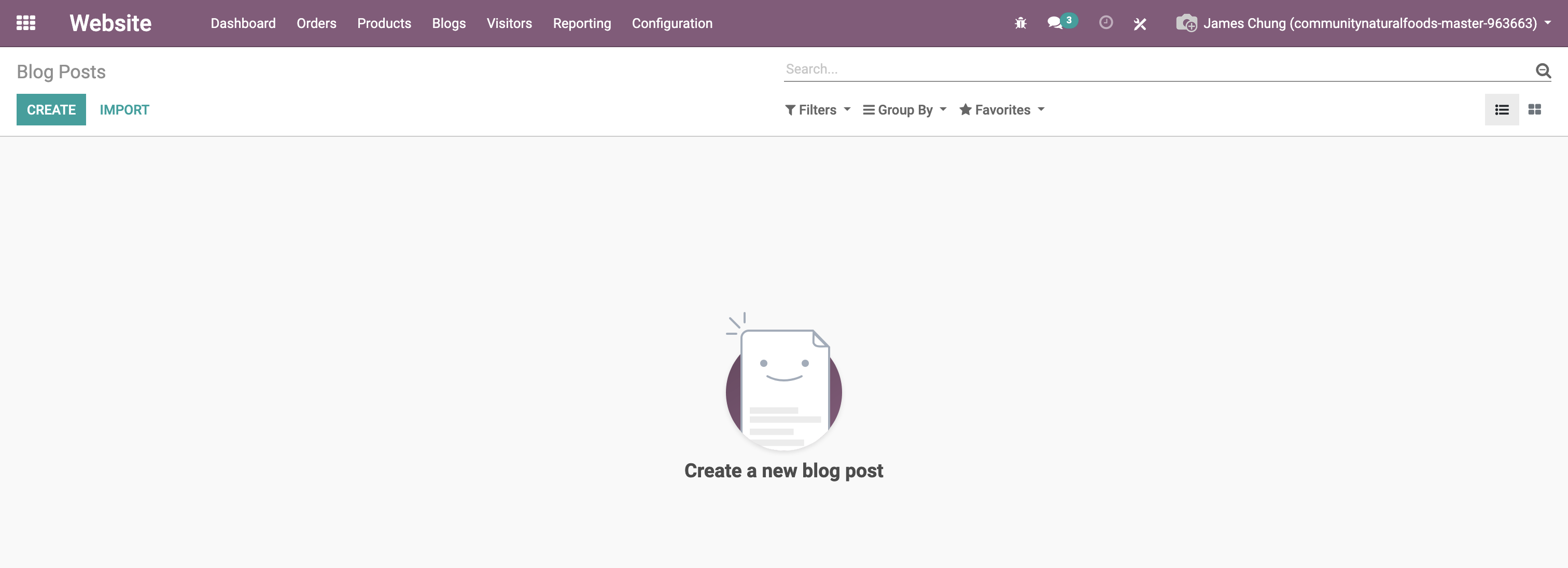
Image 3 - Blog Posts after deletion
d. Remove Website Pages (Except Homepage)
Via UI:
- Navigate to Website → Configuration → Pages
- Filter by "Website ≠ Community Natural Foods"
- Select all and delete
- Also check archived pages with
Active = False
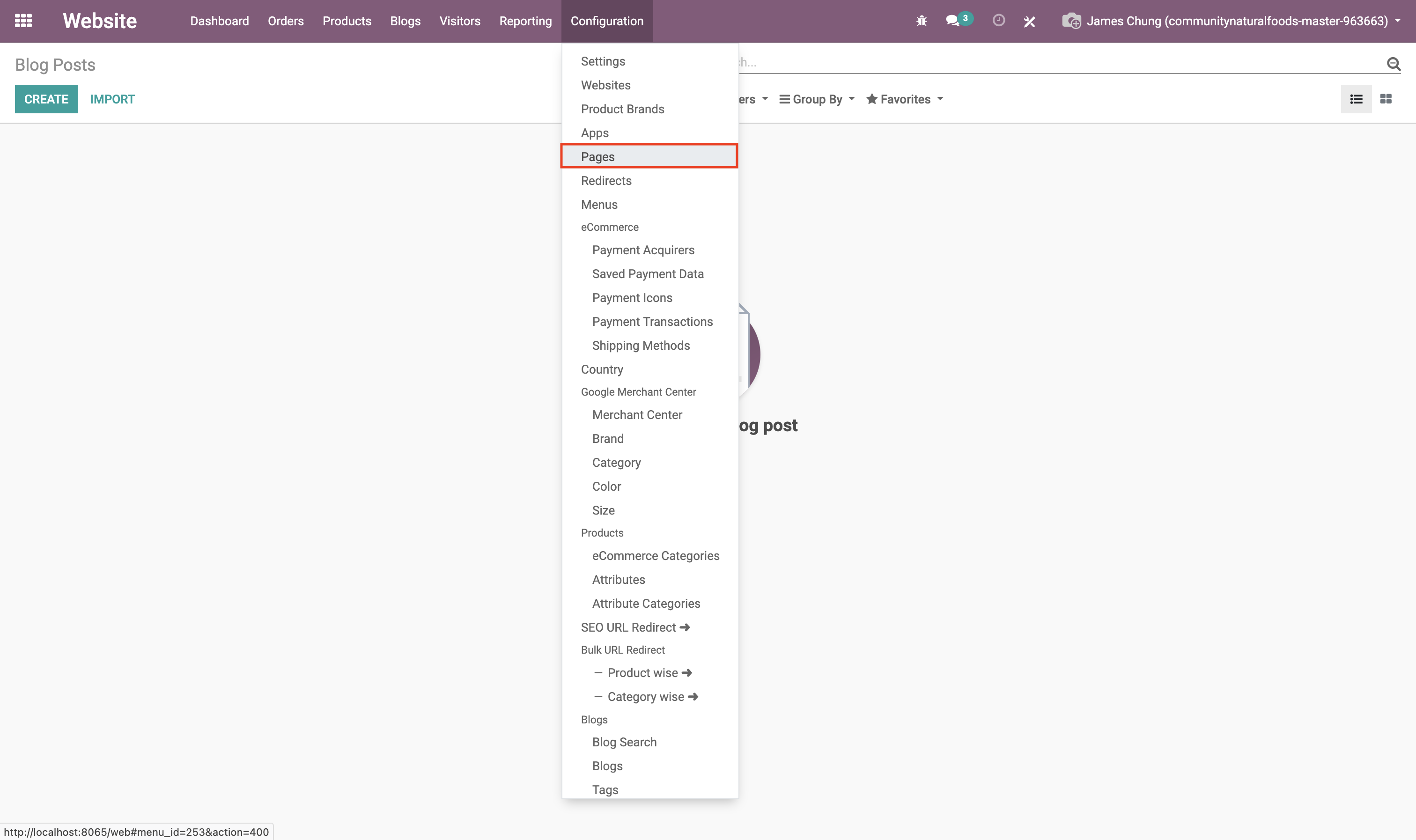
Image 4 - Configuration → Pages
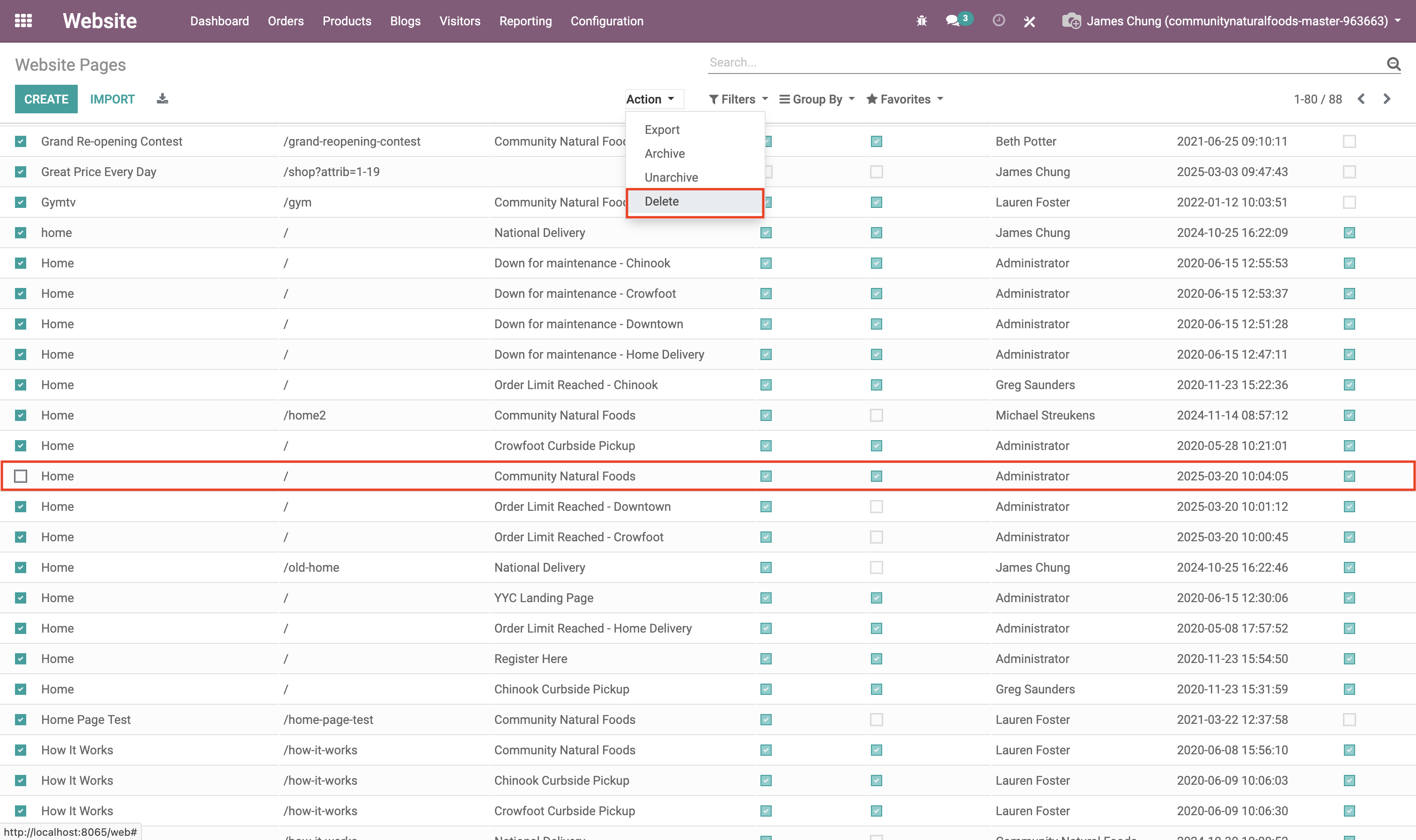
Image 5 - List of Website Pages
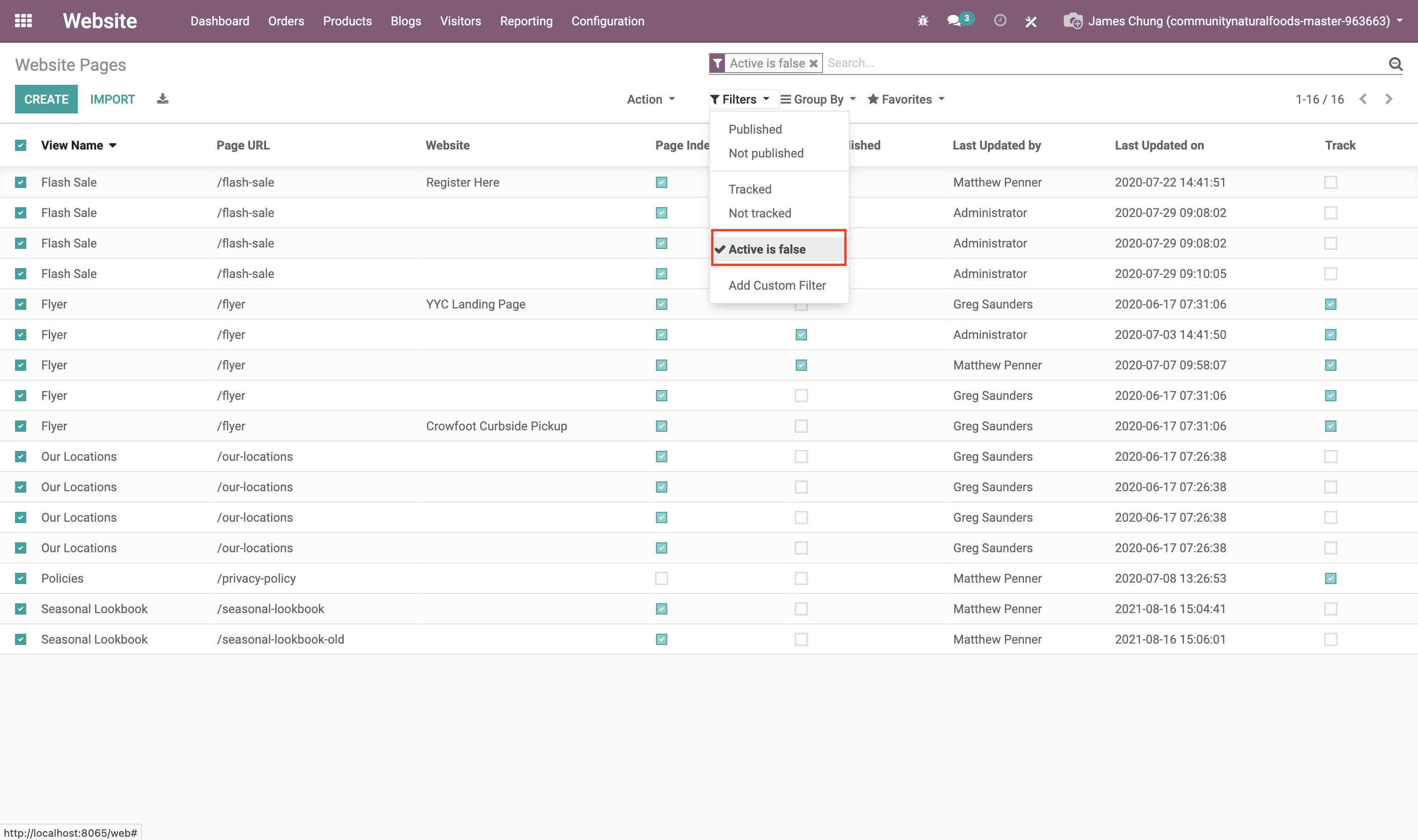
Image 6 - Archived Website Pages
Alternatively, use SQL:
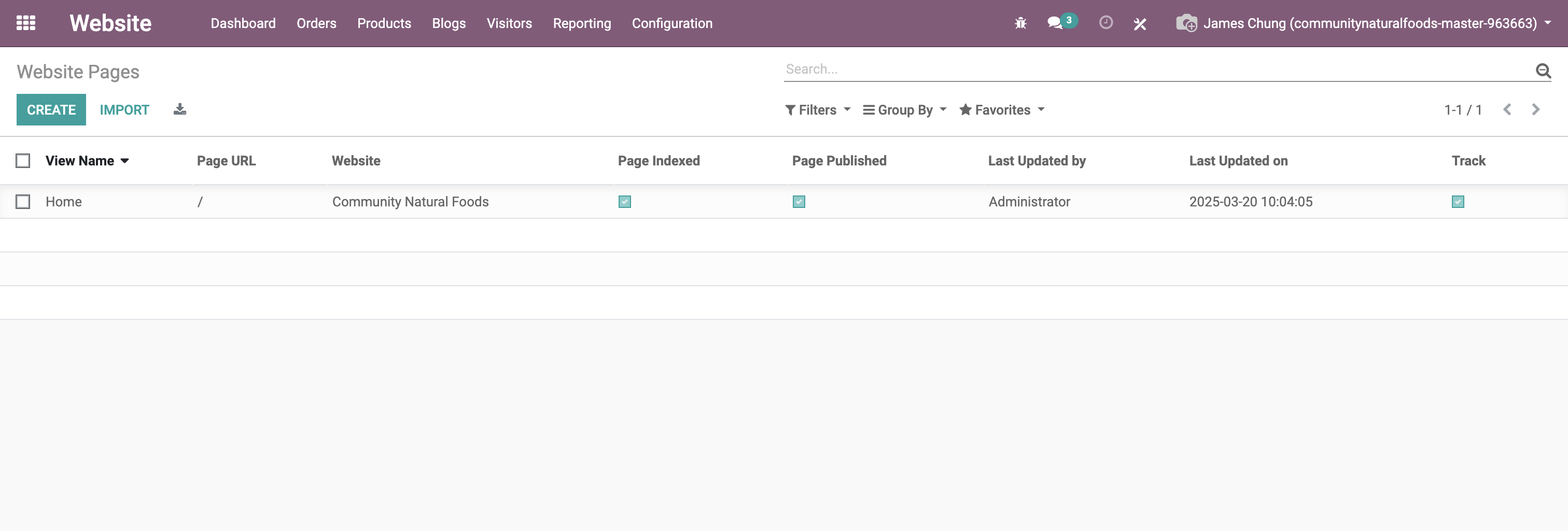
Image 7 - Website Pages showing the Community Natural Foods website
e. Remove Website from Archived Pricelists
Clear website values from all pricelists not tied to "Community Natural Foods":
2. Bulk Delete Legacy Websites
Via UI:
- Go to Website → Configuration → Websites
- Select websites with IDs 4, 5, 7, 8, 9, 10, 12, 14
- Click Action → Delete
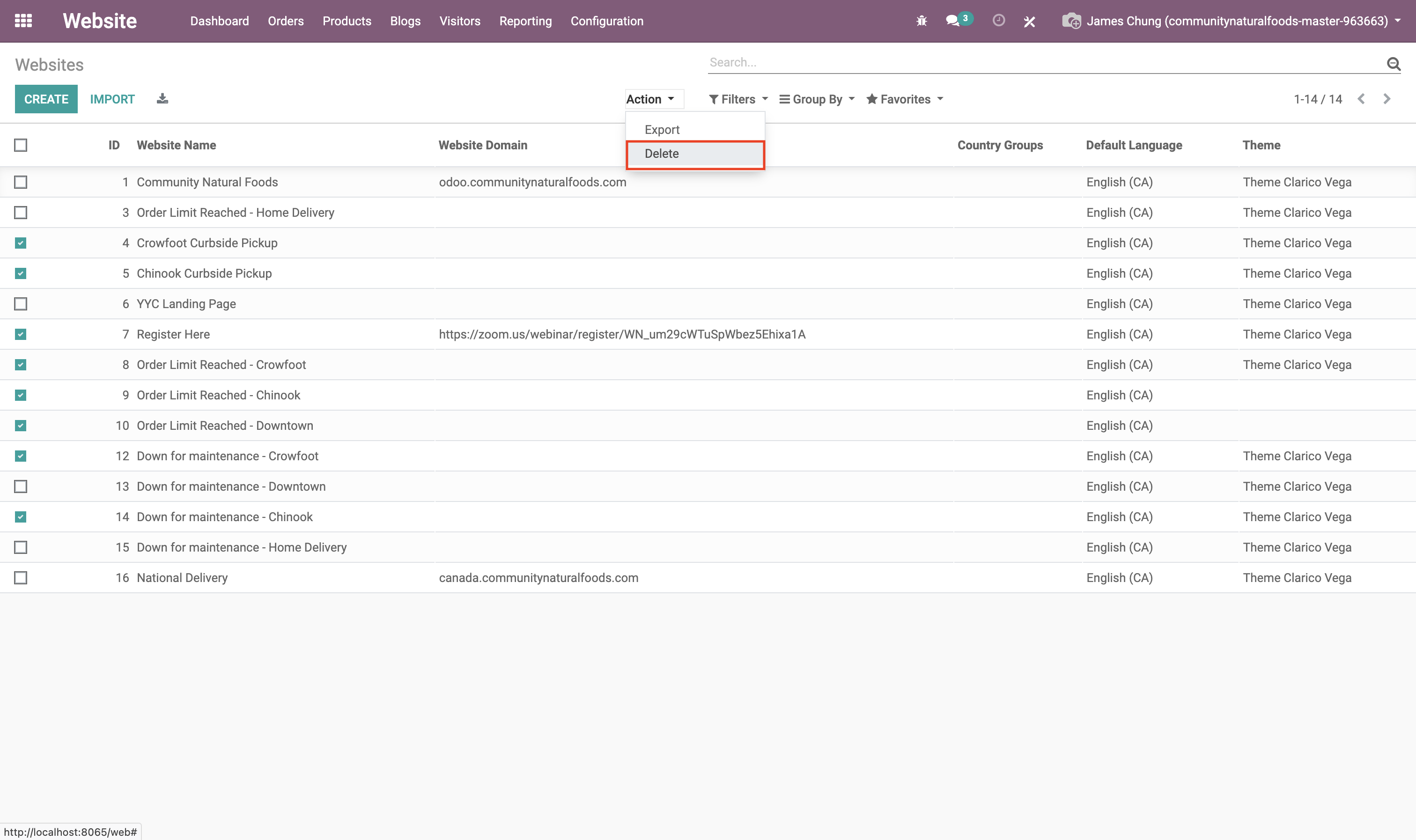
Image 8 - Websites to delete
Alternatively, use SQL:
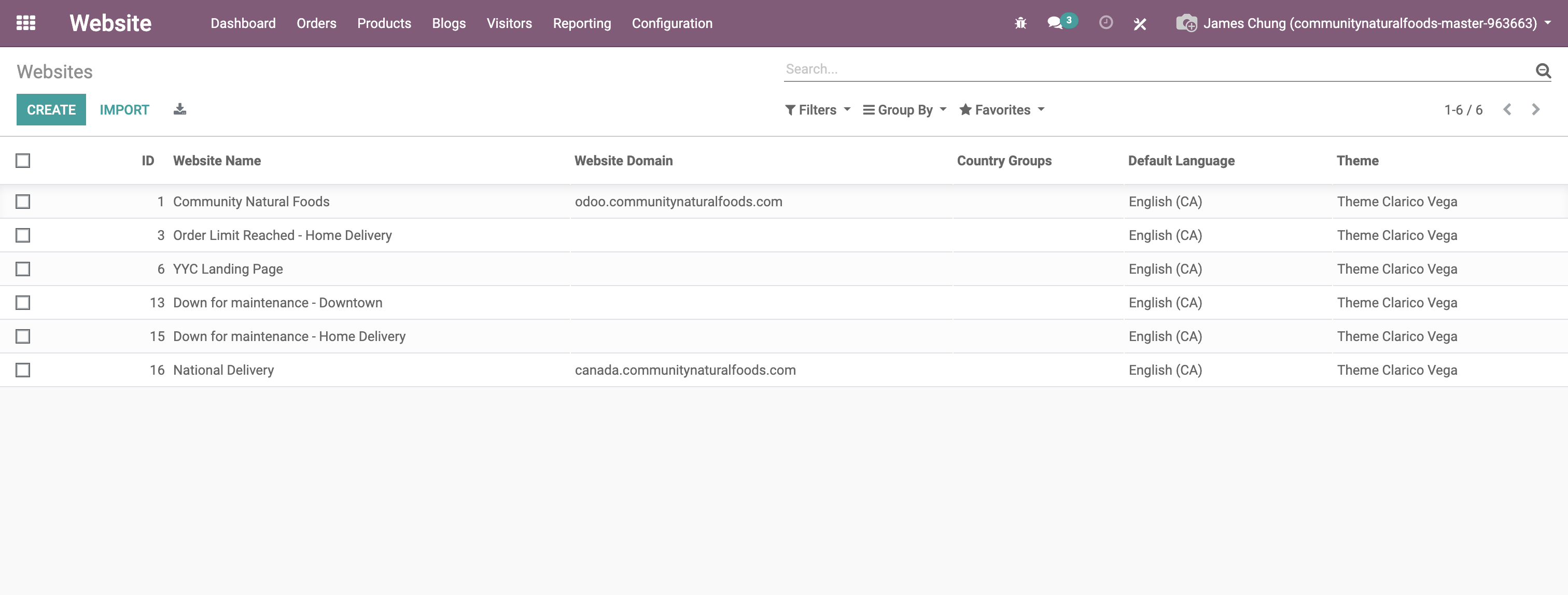
Image 9 - List of Websites after deleting websites with ID 4, 5, 7, 8, 9, 10, 12 and 14
3. Special Case: "Order Limit Reached - Home Delivery" (ID: 3)
a. Remove Website from eCommerce Categories
b. Delete the Website Record
Via UI: - Delete the website with ID = 3
Alternatively, use SQL:
4. Delete Individual Legacy Websites
For each website below, first remove associated references, then delete the website itself via the UI. Alternatively, use the provided SQL queries.
YYC Landing Page (ID: 6)
-
Unlink delivery carriers and coupon programs from Website ID 6
-
Via UI:
▪ Delete the website with ID = 6
-
Alternatively:
Down for Maintenance - Downtown (ID: 13)
-
Unlink product categories from Website ID 13
-
Via UI:
▪ Delete the website with ID = 13
-
Alternatively:
Down for Maintenance - Home Delivery (ID: 15)
-
Unlink product templates from Website ID 15
-
Via UI:
▪ Delete the website with ID = 15
-
Alternatively:
National Delivery (ID: 16)
- Unlink delivery carriers, product categories, and coupon programs from Website ID 16
-
Via UI:
▪ Delete the website with ID = 16
-
Alternatively:
Websites (Final State)
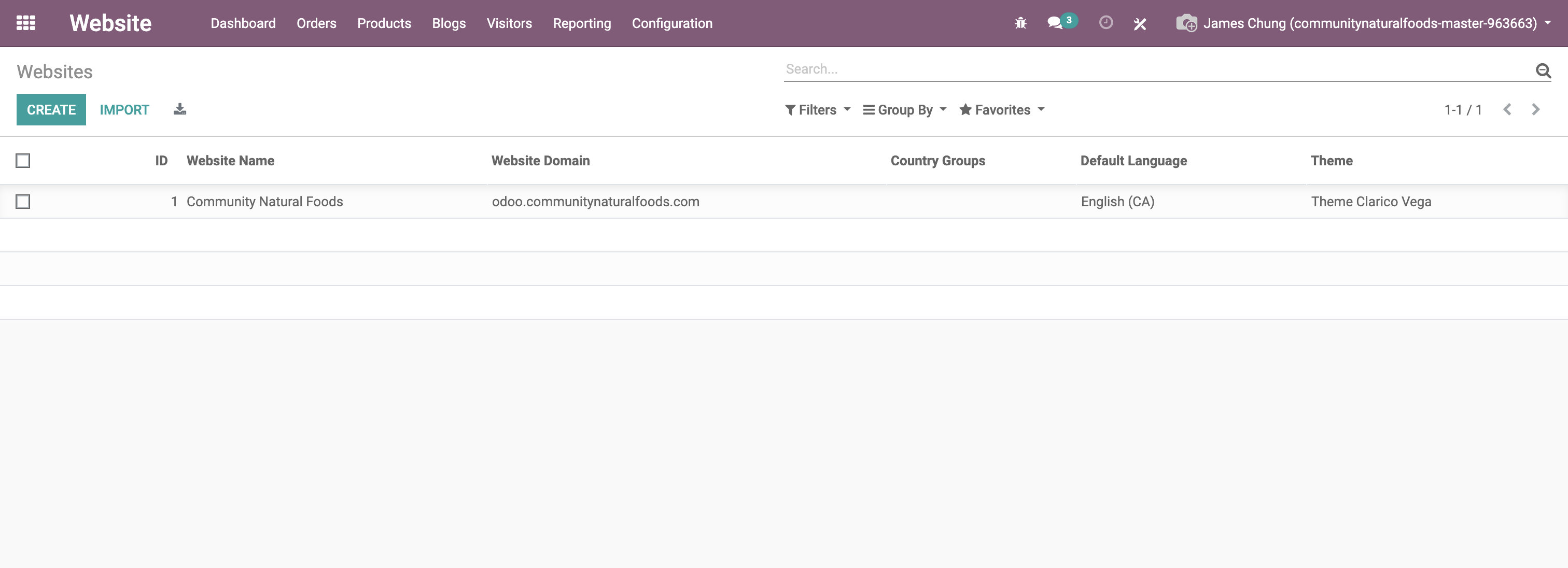
Image 10 – Final state of Websites after cleanup
Summary Table of Removed Websites
| Status | Website Name | ID | Notes |
|---|---|---|---|
| ✅ | Order Limit Reached - Home Delivery | 3 | Special case: linked to blogs and product categories |
| ✅ | Crowfoot Curbside Pickup | 4 | |
| ✅ | Chinook Curbside Pickup | 5 | |
| ✅ | YYC Landing Page | 6 | Required unlinking from shipping methods and coupons |
| ✅ | Register Here | 7 | |
| ✅ | Order Limit Reached - Crowfoot | 8 | |
| ✅ | Order Limit Reached - Chinook | 9 | |
| ✅ | Order Limit Reached - Downtown | 10 | |
| ✅ | Down for Maintenance - Crowfoot | 12 | |
| ✅ | Down for Maintenance - Downtown | 13 | Unlinked from product categories |
| ✅ | Down for Maintenance - Home Delivery | 15 | Unlinked from product templates |
| ✅ | National Delivery | 16 | Unlinked from multiple models |
Rollback Queries (if needed)
In case any deletion must be reverted manually, restore from a backup or reassign websites to records manually. Example rollback queries:
-- Reassign blog_blog to a website
UPDATE blog_blog SET website_id = 1 WHERE id = <blog_id>;

-- Reassign product template
UPDATE product_template SET website_id = 1 WHERE id = <template_id>;

-- Recreate deleted website if needed
INSERT INTO website (id, name, ...) VALUES (...);
Post-Removal Verification
After completing all deletions, run these queries to verify data integrity:
-- Check for orphaned sale orders
SELECT COUNT(*) as orphaned_orders
FROM sale_order
WHERE website_id IS NOT NULL
 AND website_id NOT IN (SELECT id FROM website);

-- Check for orphaned product templates
SELECT COUNT(*) as orphaned_products
FROM product_template
WHERE website_id IS NOT NULL
 AND website_id NOT IN (SELECT id FROM website);

-- Check for orphaned delivery carriers
SELECT COUNT(*) as orphaned_carriers
FROM delivery_carrier
WHERE website_id IS NOT NULL
 AND website_id NOT IN (SELECT id FROM website);

-- Check for orphaned coupon programs
SELECT COUNT(*) as orphaned_coupons
FROM sale_coupon_program
WHERE website_id IS NOT NULL
 AND website_id NOT IN (SELECT id FROM website);

-- Verify only the main website remains
SELECT id, name, domain
FROM website
ORDER BY id;
If any orphaned records are found, update them to point to website ID 1 or set to NULL as appropriate.
Final Recommendations
- Use Developer Mode in Odoo to inspect website dependencies
- After deletions, validate that remaining websites function correctly
- Consider adding constraints or validation rules to prevent orphaned records