Receiving using Ventor https://ventor.app/guides/receiving-goods-in-odoo-via-barcode-scanner/
Walk through
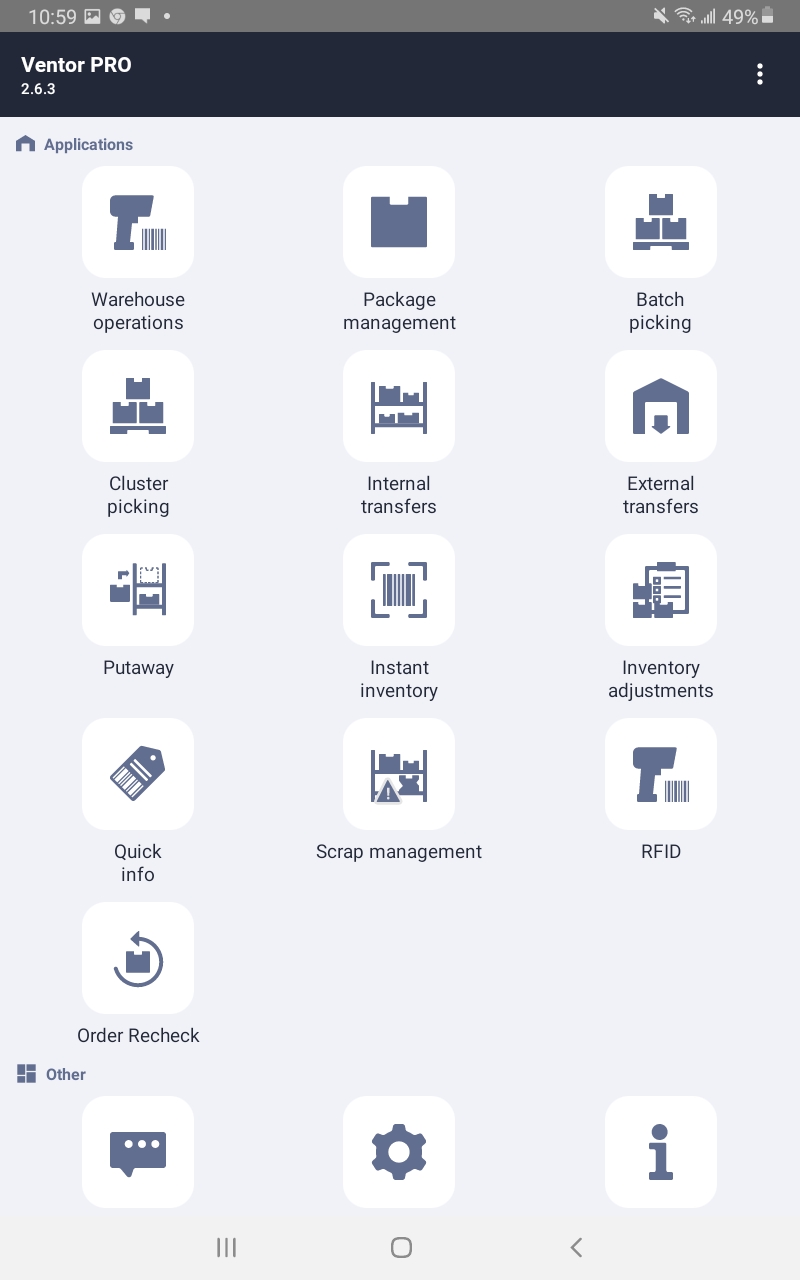
Click on Warehouse operations.
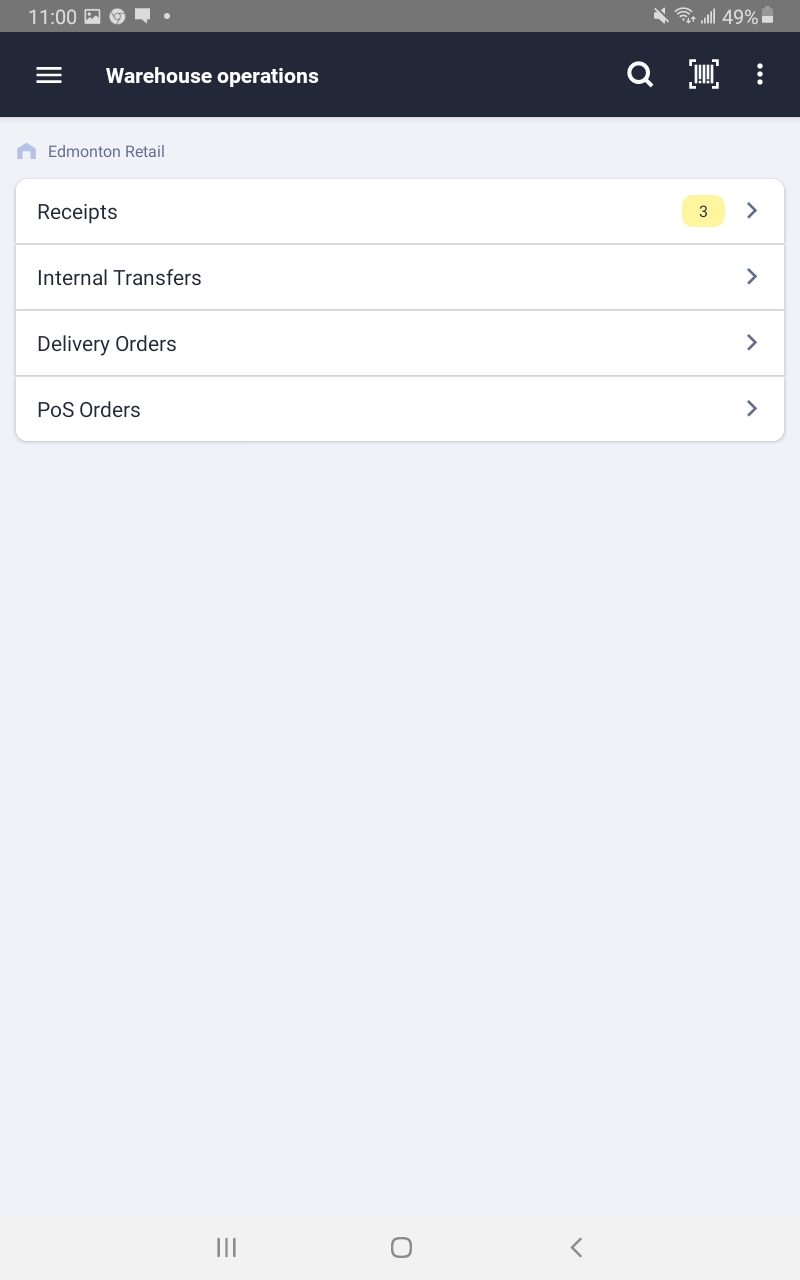
From here you can click on the operation you would like to perform.
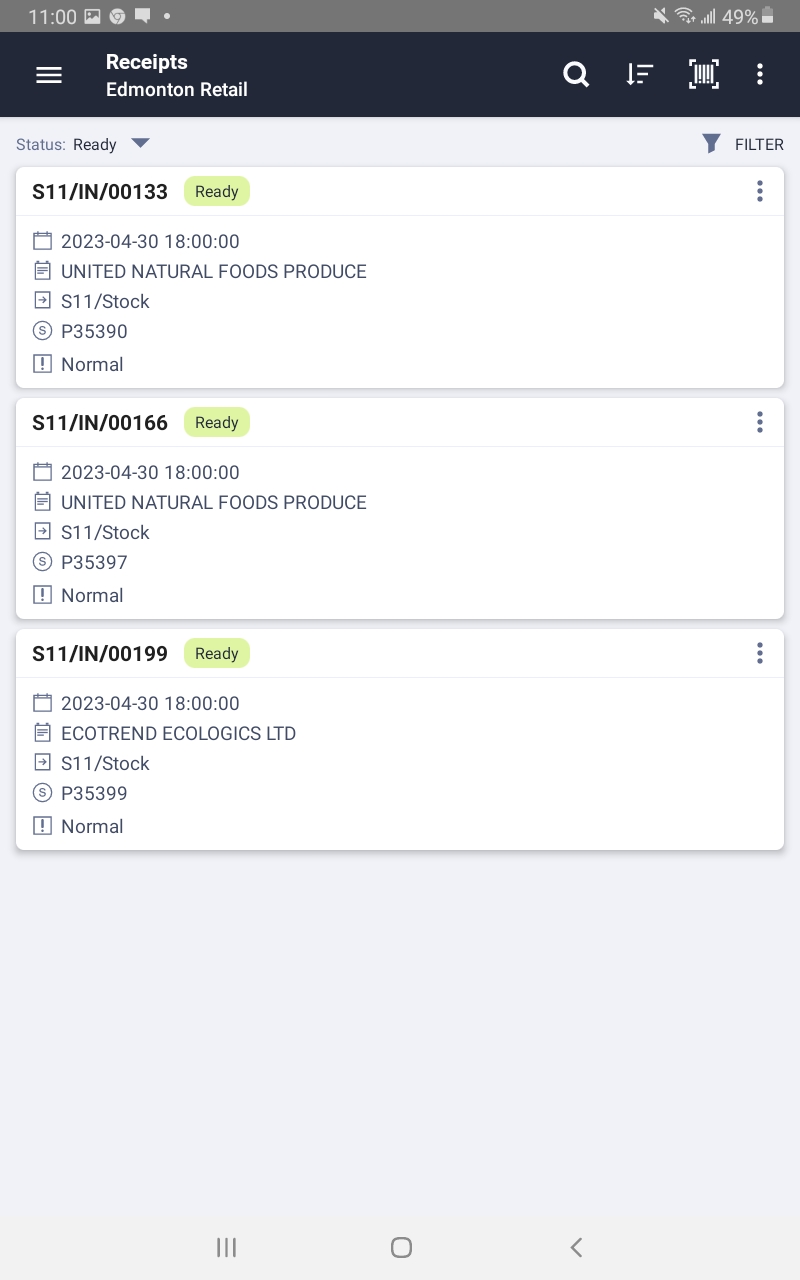
Here you will see all the available receipts. Select the one you are processing.
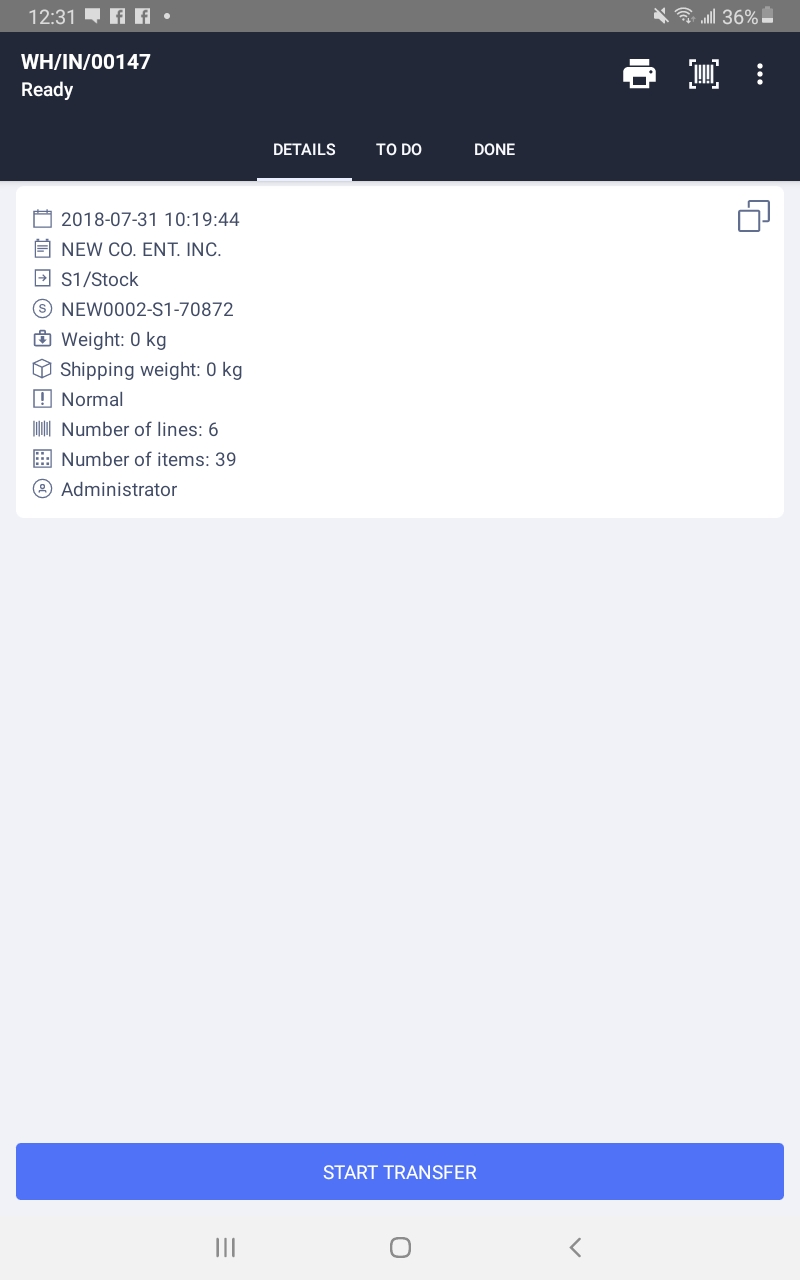
4.Here you can start the transfer and look at the lines on it.
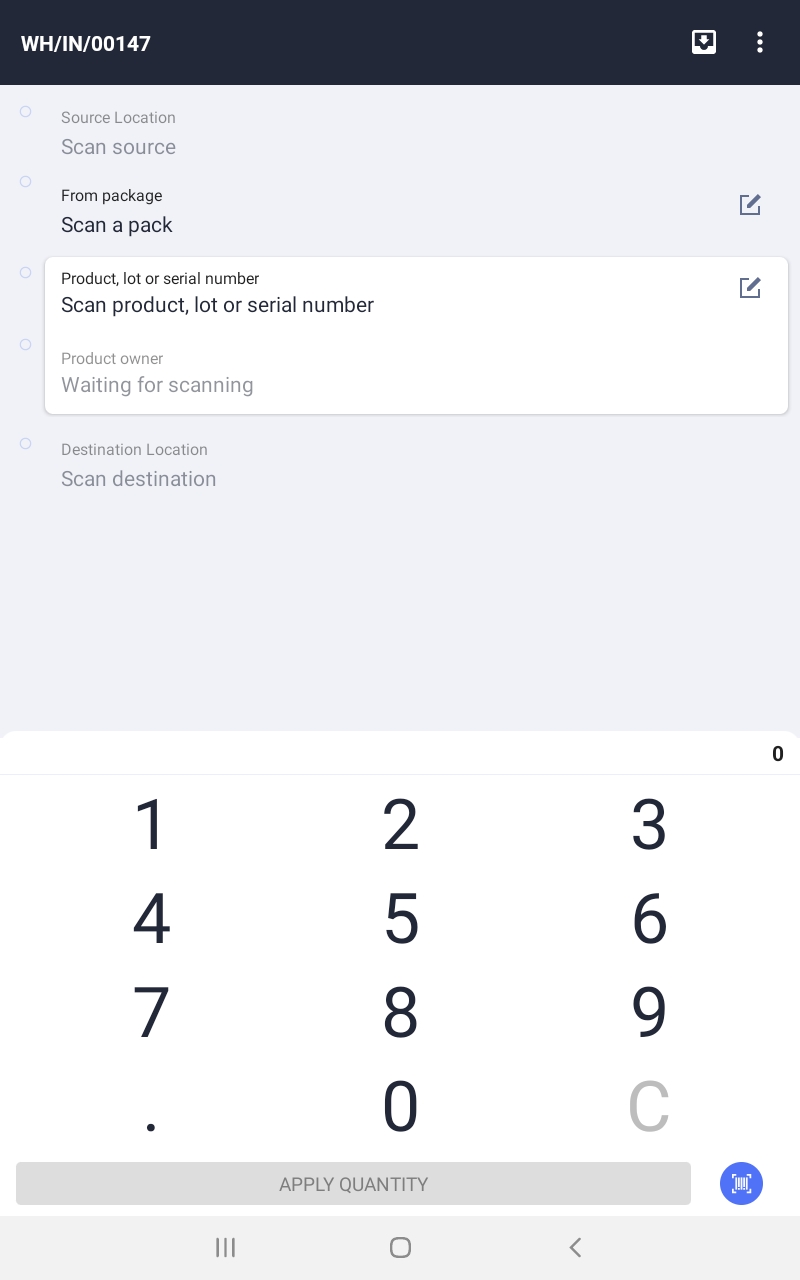
When you start a transfer you will be brought to a page allowing you to start processing items.
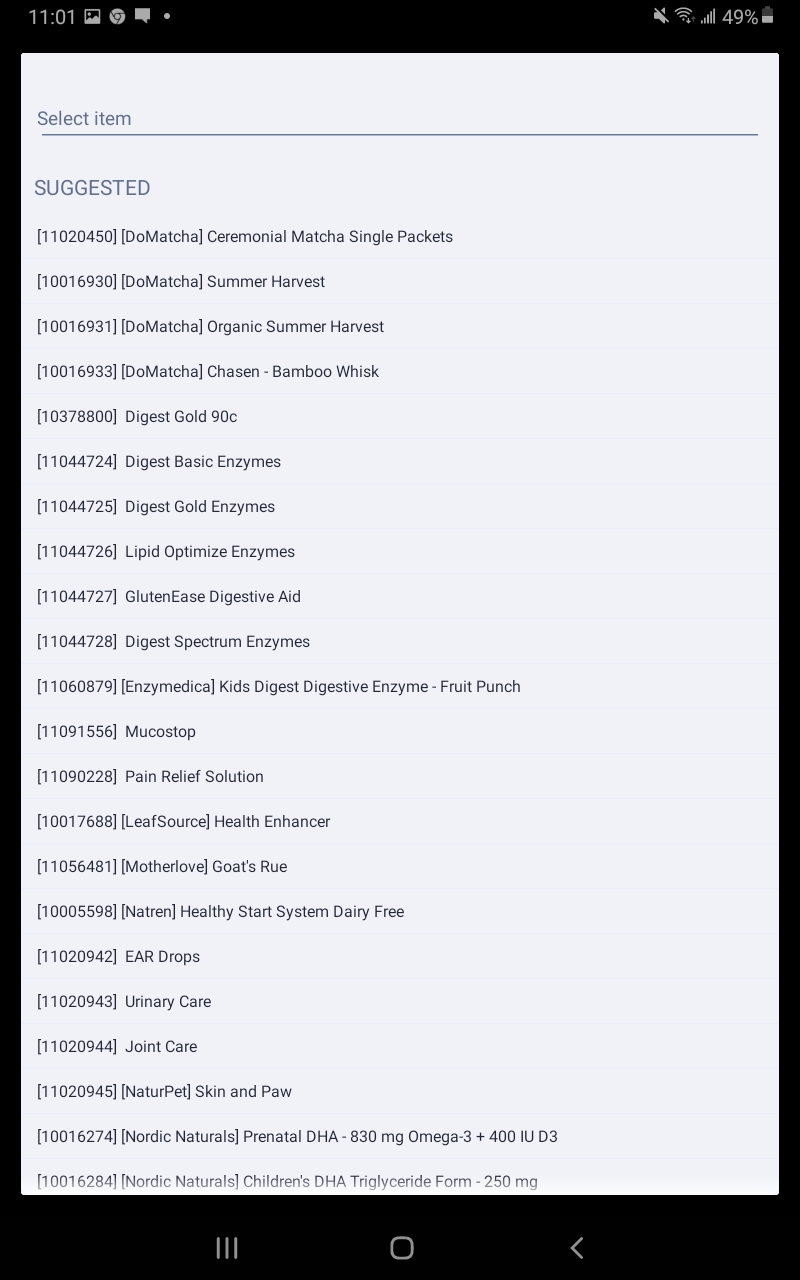
You can scan a barcode or you can search the items. Suggested items will be items that are on the planned transfer.
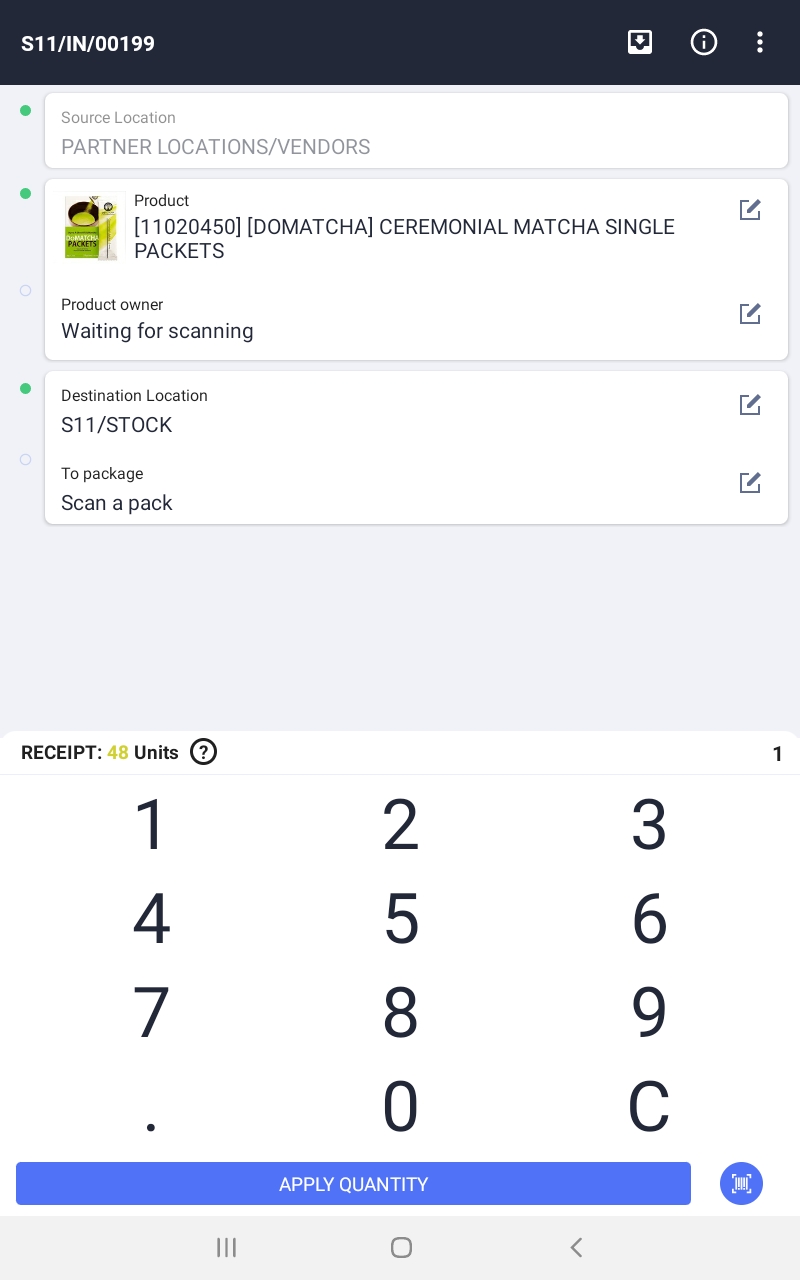
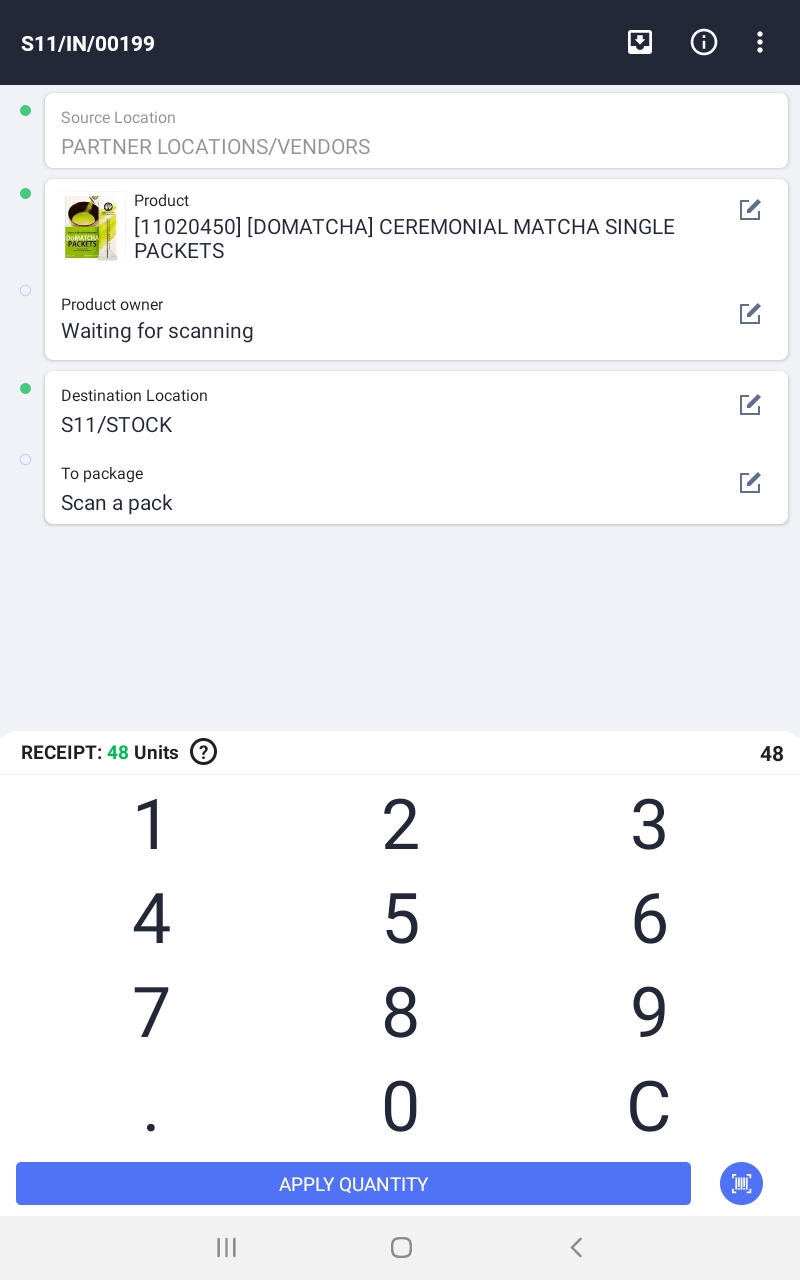
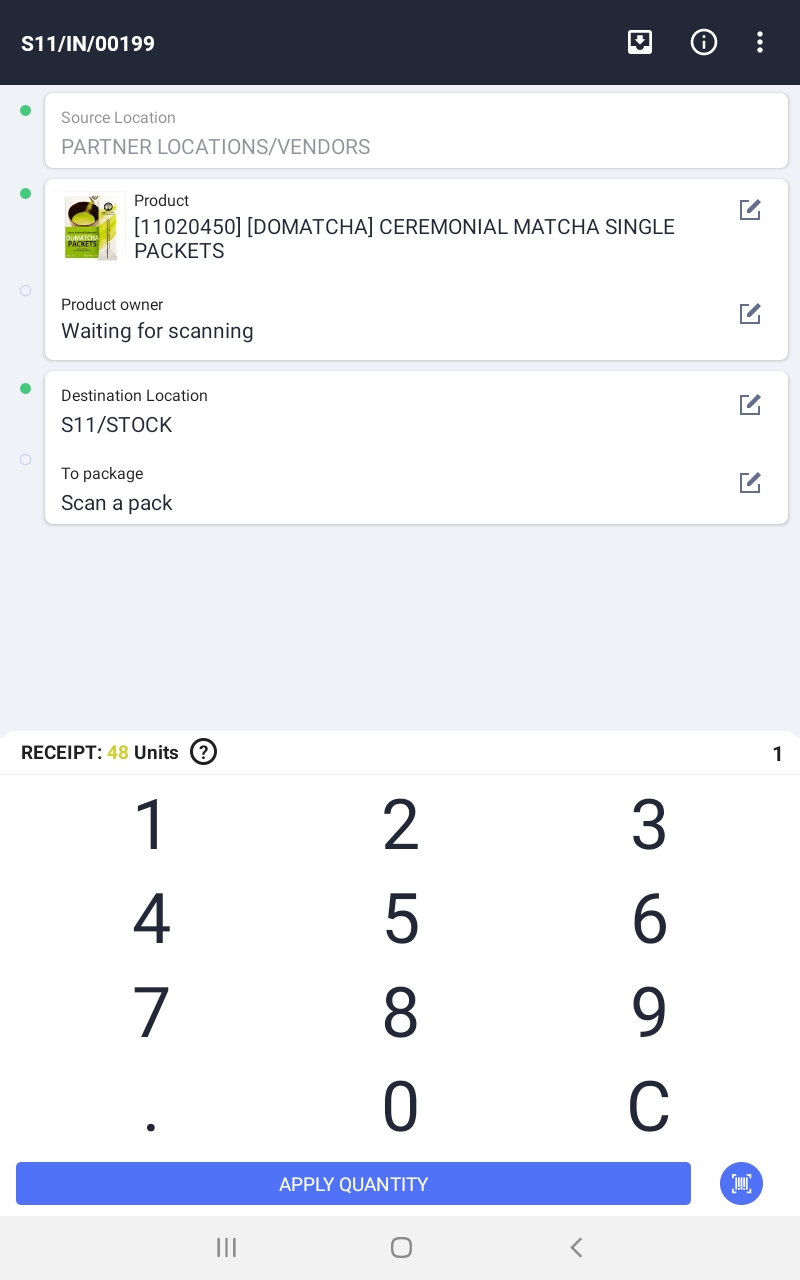
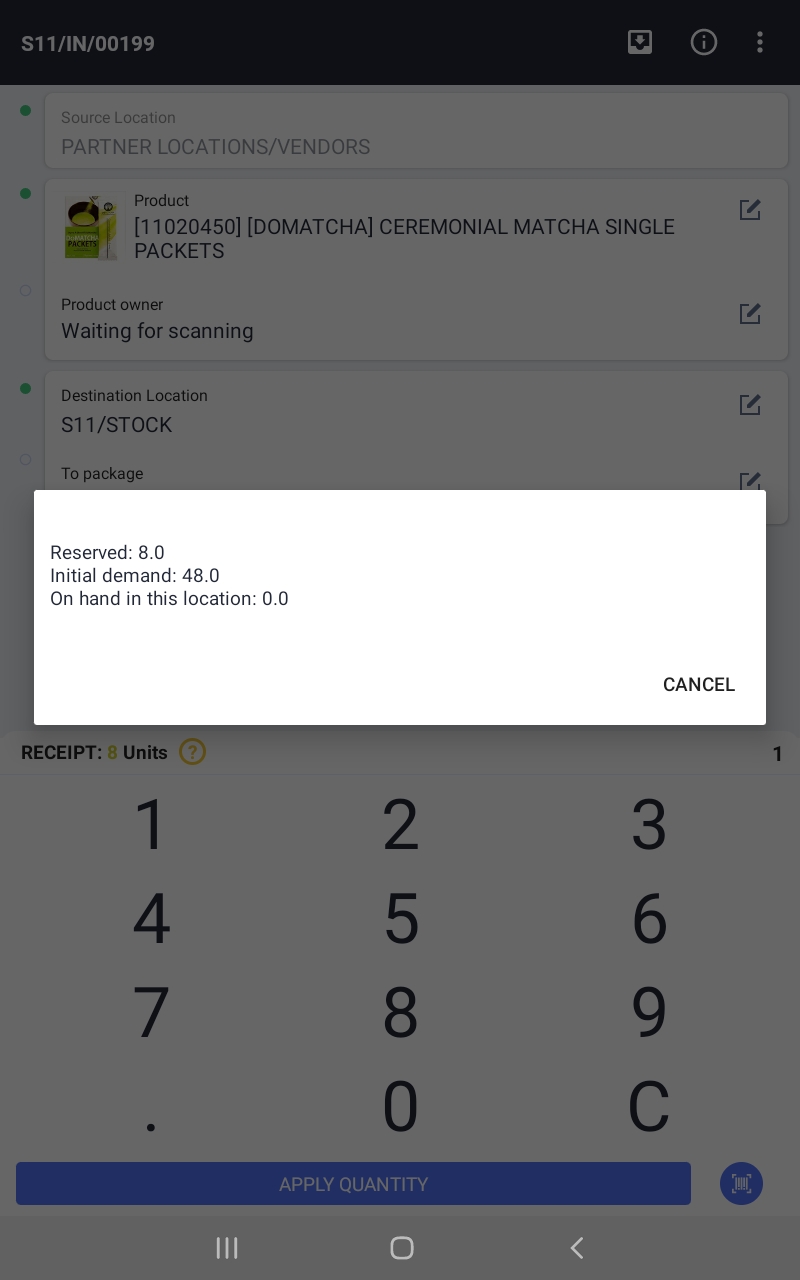
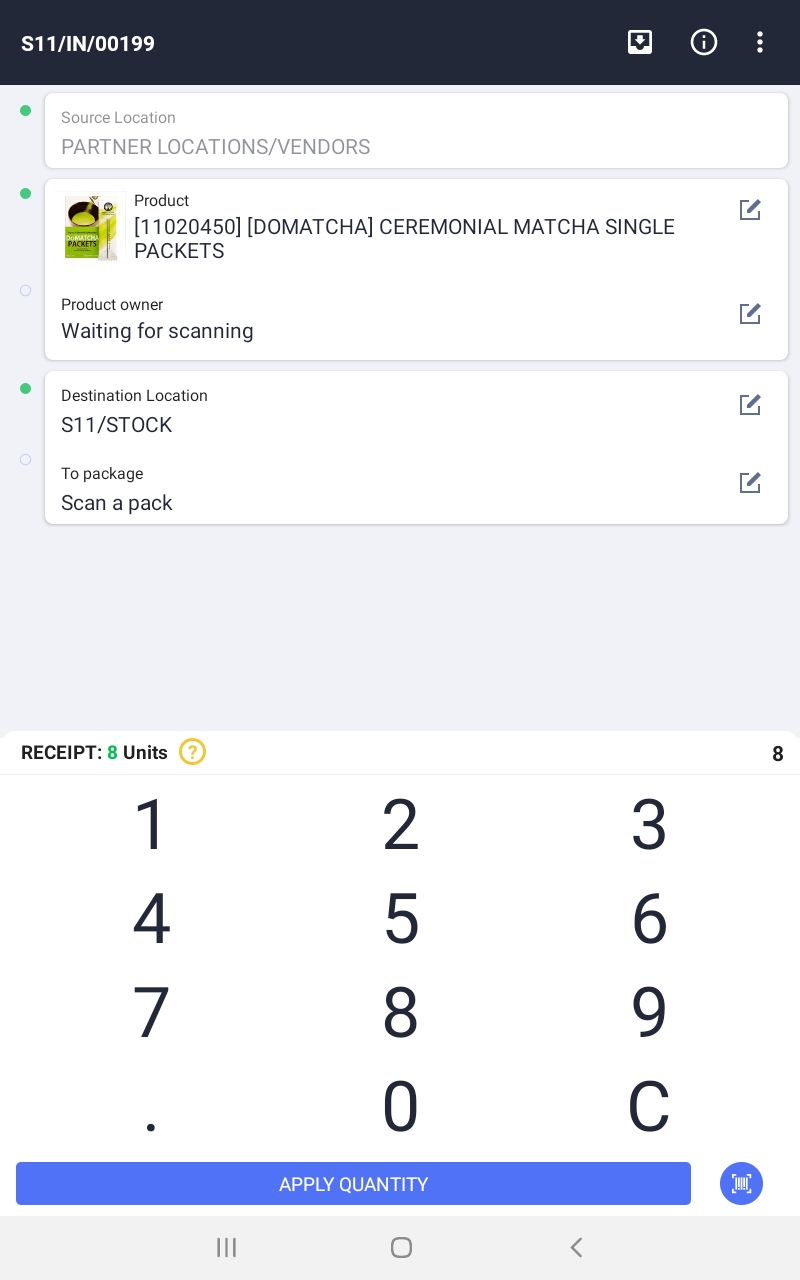
Once the item is selected you can scan the items to increase the count or just enter the number.
When the correct number is selected the quantity will turn green to indicate the correct quantity was processed.
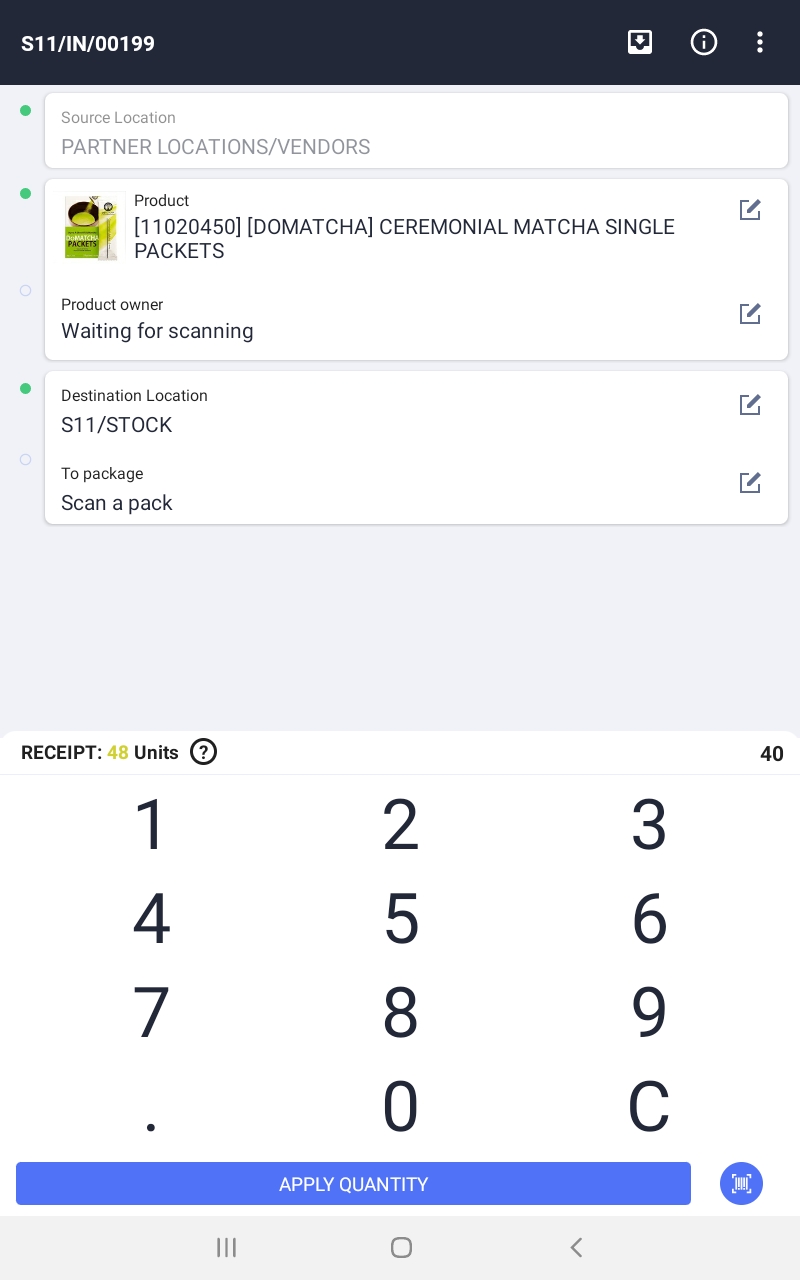
If not enough products are counted the number will appear yellow.
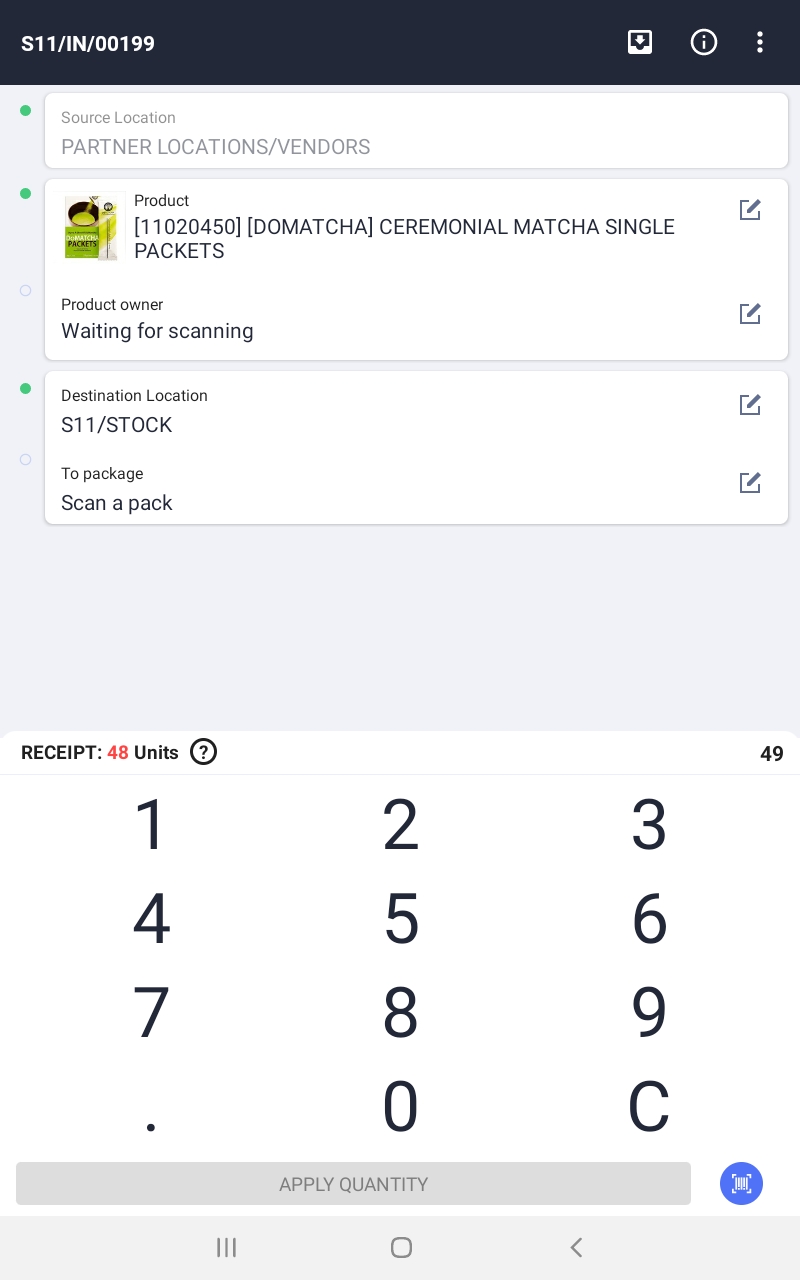
If more product is processed it will appear red.
You can process less initially let's say there is product at the back of the truck but the other half is at the front. You can process part of the line initially then come back and get the rest later.
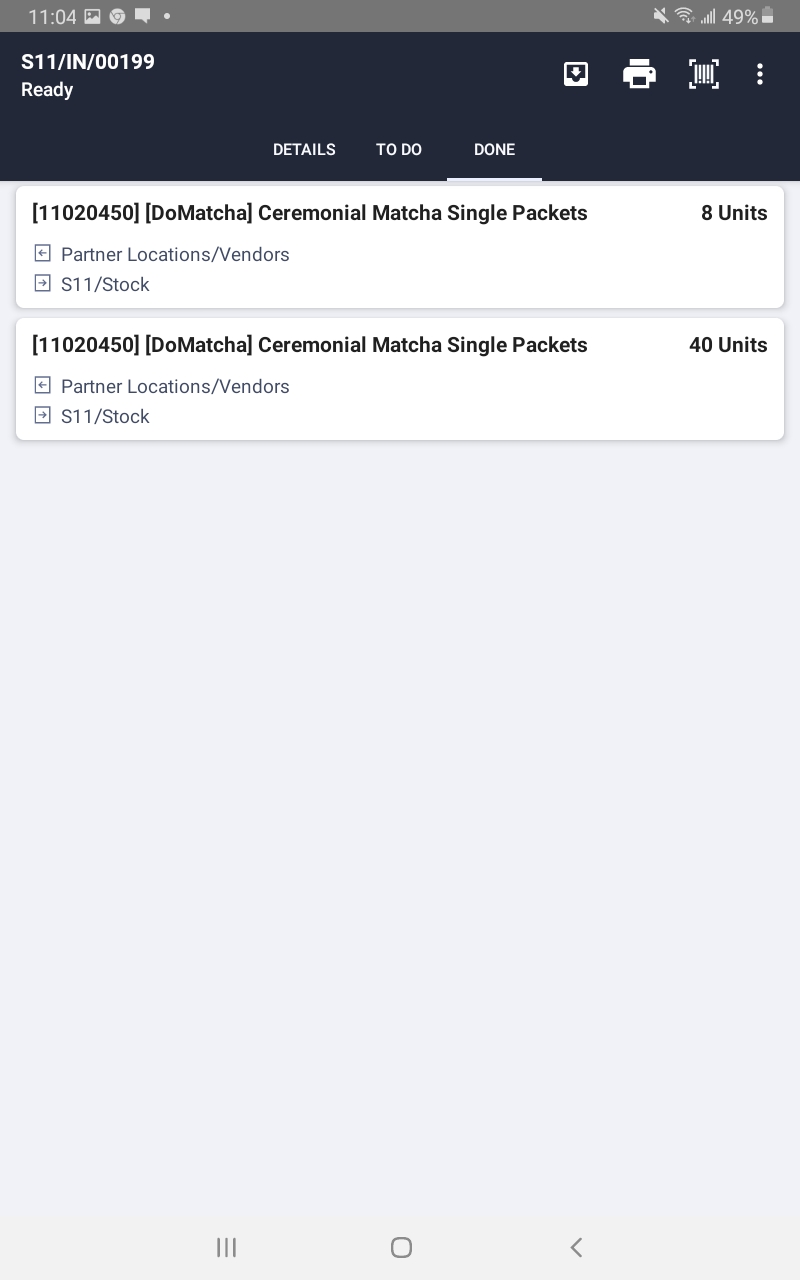
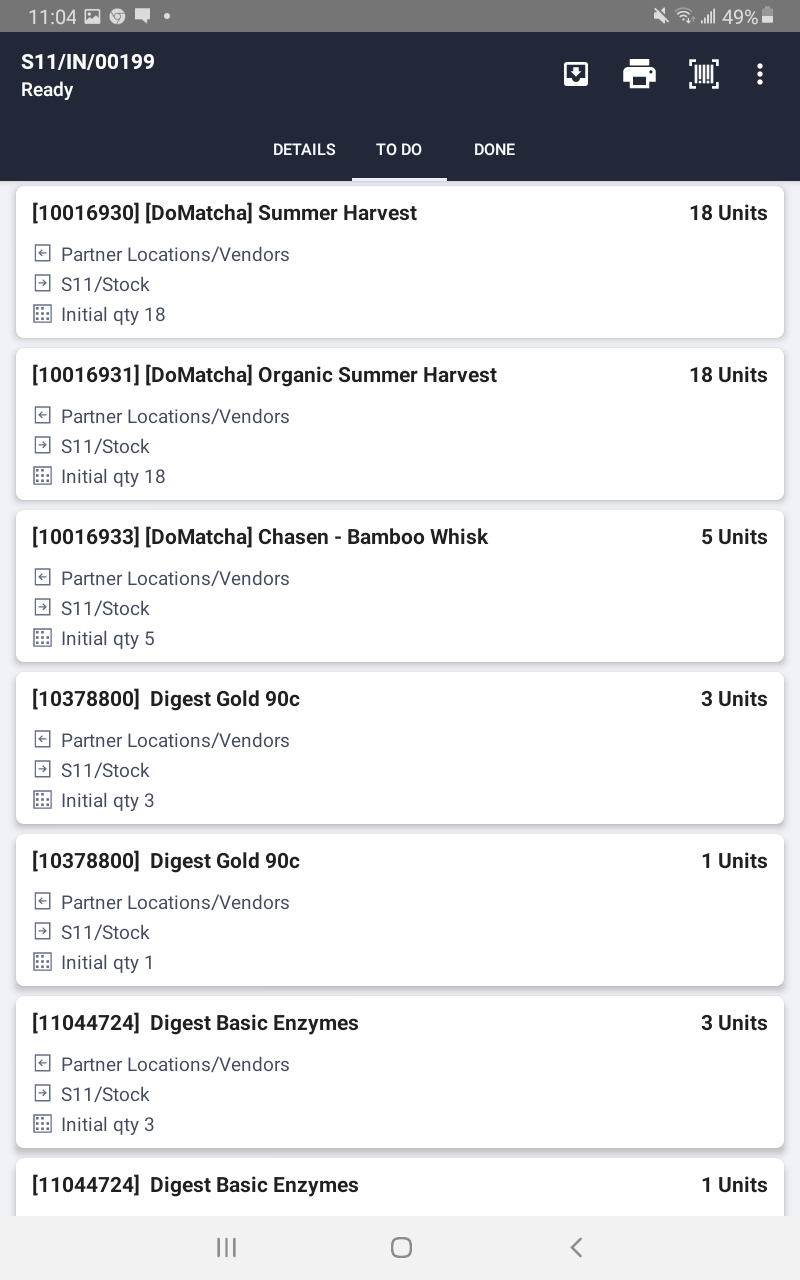
You can see the done lines and the lines to do.
At the end you can validate the order. If no orders have been processed the expected quantities will automatically be set to the done quantities.
 4.Here you can start the transfer and look at the lines on it.