Odoo PWA App
Odoo can be installed as a "Progressive Web App", which is basically just pinning the website to your home screen. By installing as a PWA, launching the app will give you a much more controlled appearance. There will be no address bar or other web browser menus a user can tap into, which will make it much easier to support.
The Odoo inventory count experience has been tested in Google Chrome, so it is recommended that Chrome be installed on the mobile device and used for this tutorial.
- Open Google Chrome on the Android device.
-
In the address bar, navigate to the Odoo URL:
a. Production: https://odoo.communitynaturalfoods.com/web
b. Staging: https://training.communitynaturalfoods-staging.com/web
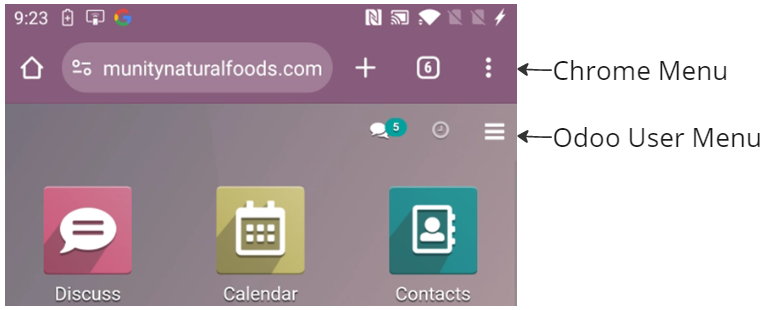
- Login to Odoo using your own credentials. (You can logout after installing.)
- While in the Odoo home screen, tap the menu to the right of the address bar, and tap Add to Home screen.

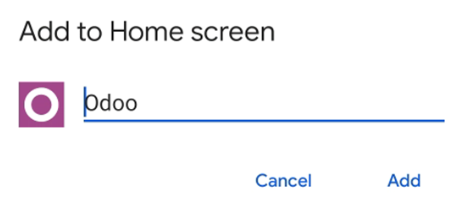
- Leave the name as Odoo and tap Add.
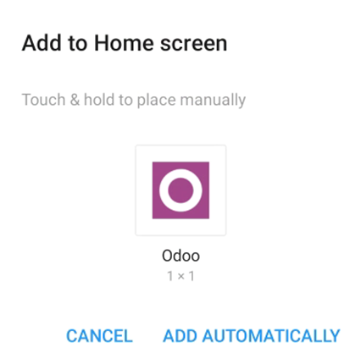
- On the Add to Home screen dialog, tap Add Automatically.
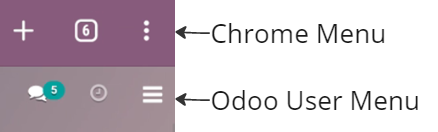
- While still in Chrome, use the Odoo User Menu to Log out.
- Press the home key on the device to return to the Android home screen.
- From the Android home screen, you should see the Odoo app. Tap the Odoo icon to launch.
- It may launch logged in, if so, simply tap the Odoo User Menu and tap Log out.